A scan or mesh can be a useful starting point without containing the original model’s sketches, dimensions, constraints, or feature history. Choose a method from the change you need and the shape information you can trust. Do not begin by assuming that every scan should become a feature-based solid.
Define the change and the source of truth
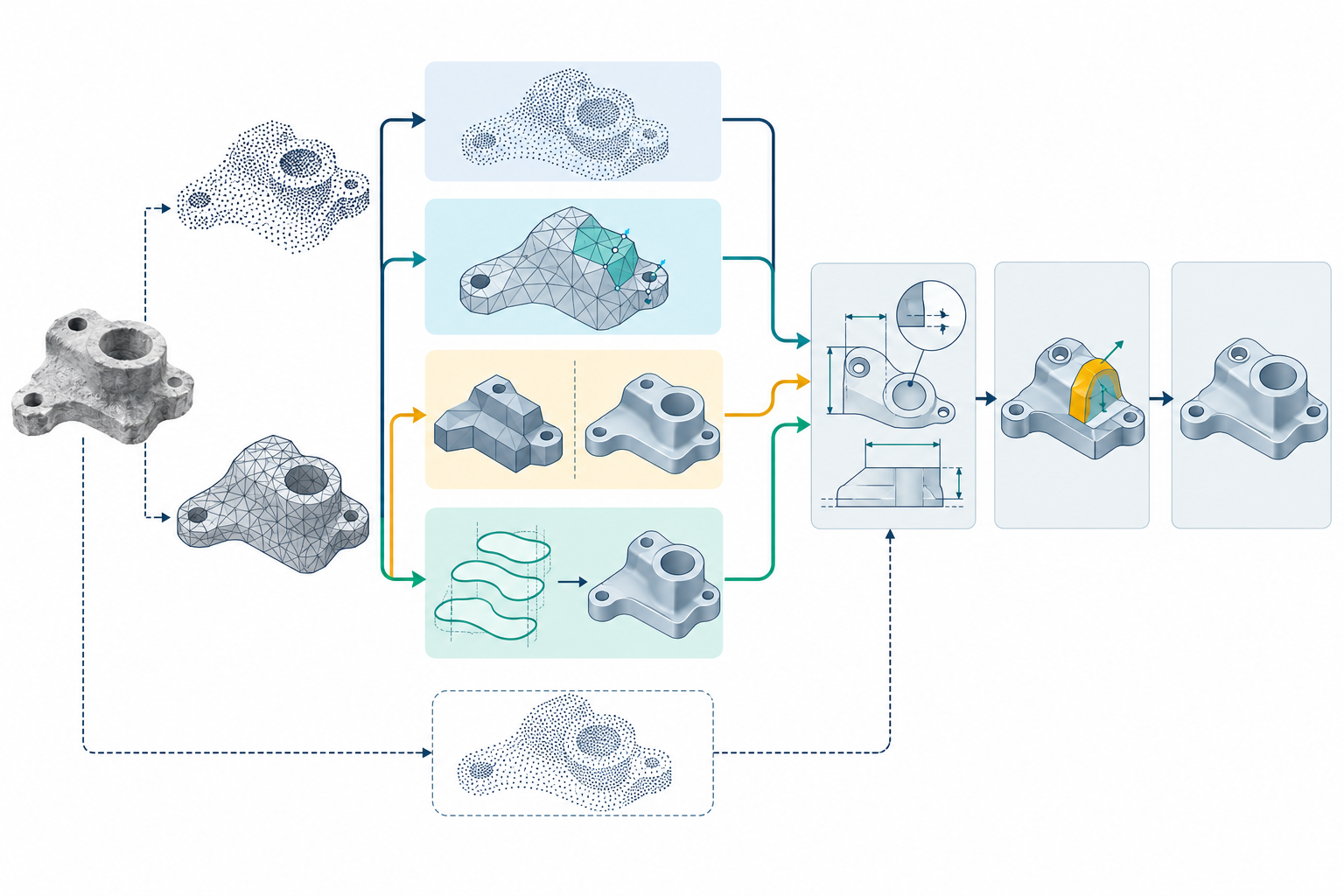
A point cloud records sampled positions. A polygon mesh connects vertices into faces. A boundary representation (B-rep) describes a solid or surface through faces, edges, and their topology. These representations can describe observed shape, but none by itself explains why the designer chose particular dimensions or relationships.
Before editing, state what must change, what must remain within tolerance, and whether the scan represents the intended nominal shape or only the measured object. If the source design or a controlled drawing is authoritative, use it to resolve design dimensions that cannot be inferred from the observed surface. Preserve the original capture and record its units, placement, and alignment before creating derived geometry. For input mesh health, topology, and geometric comparison, see the separate geometry and topology guidance.
Prepare and inspect point data before reconstruction
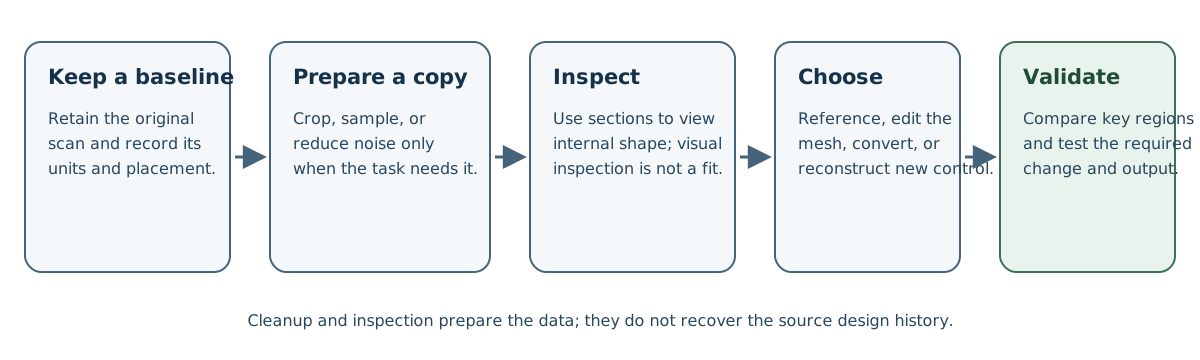
A point cloud can need cleanup or a smaller working set before it is wrapped or used to build surfaces. In Creo Parametric 13, the documented point-handling workflow includes cropping, deleting outliers, sampling, and reducing noise. Its sampling methods retain a user-selected random percentage, one point per spatial cell, or more points in higher-curvature regions. Noise reduction offers free-form and mechanical methods; the mechanical method is intended to retain sharp corners and edges. These operations change which points remain or where they are located. The documentation gives no accuracy bound, so preserve the original scan and compare any processed set with the geometry requirements before using it to construct a model. Creo’s point-phase overview, noise-reduction options, and sampling methods describe these controls.
Inventor 2027 help documents persistent point-cloud crop boundaries with commands to edit or restore cropped portions across sessions. Its Section View can display a cross-section through a point cloud without changing the geometry. Treat these as working-region and inspection controls: a section view does not create a fitted profile, and crop persistence does not establish that the crop state transfers to another application. Confirm the selected region and keep the original data available when later modeling depends on it. Inventor’s crop guidance and Section View guidance are release-specific product documentation, not evidence of availability in every installation.
Choose the least expansive representation that meets the task
| Reader need | Starting approach | What to verify |
|---|---|---|
| Inspect, align, measure, or build around an observed object | Keep the point cloud or mesh as a reference | Units, coordinate frame, alignment, and whether the observed surface is an acceptable basis for the next operation |
| Make a bounded change that the receiver supports on the imported body | Edit the mesh or mesh body directly | The actual body class, available operations, changed region, and whether the resulting shape still meets its interfaces |
| Use solid or surface tools on the observed shape | Convert the mesh to a receiver-supported body | Conversion method, resulting face/body class, open boundaries, and downstream feature behavior |
| Make repeated dimensional changes or preserve explicit relationships | Reconstruct selected sketches, profiles, surfaces, or features | Which controls were newly authored, their references and constraints, and how the result compares with the measured shape |
The original scan is often the strongest reference for what was measured. A converted or reconstructed model may be easier to modify, but it is a new interpretation of that shape. Keep the reference when future checks need to distinguish the observed surface from the model built from it.
Check the imported body class before choosing operations
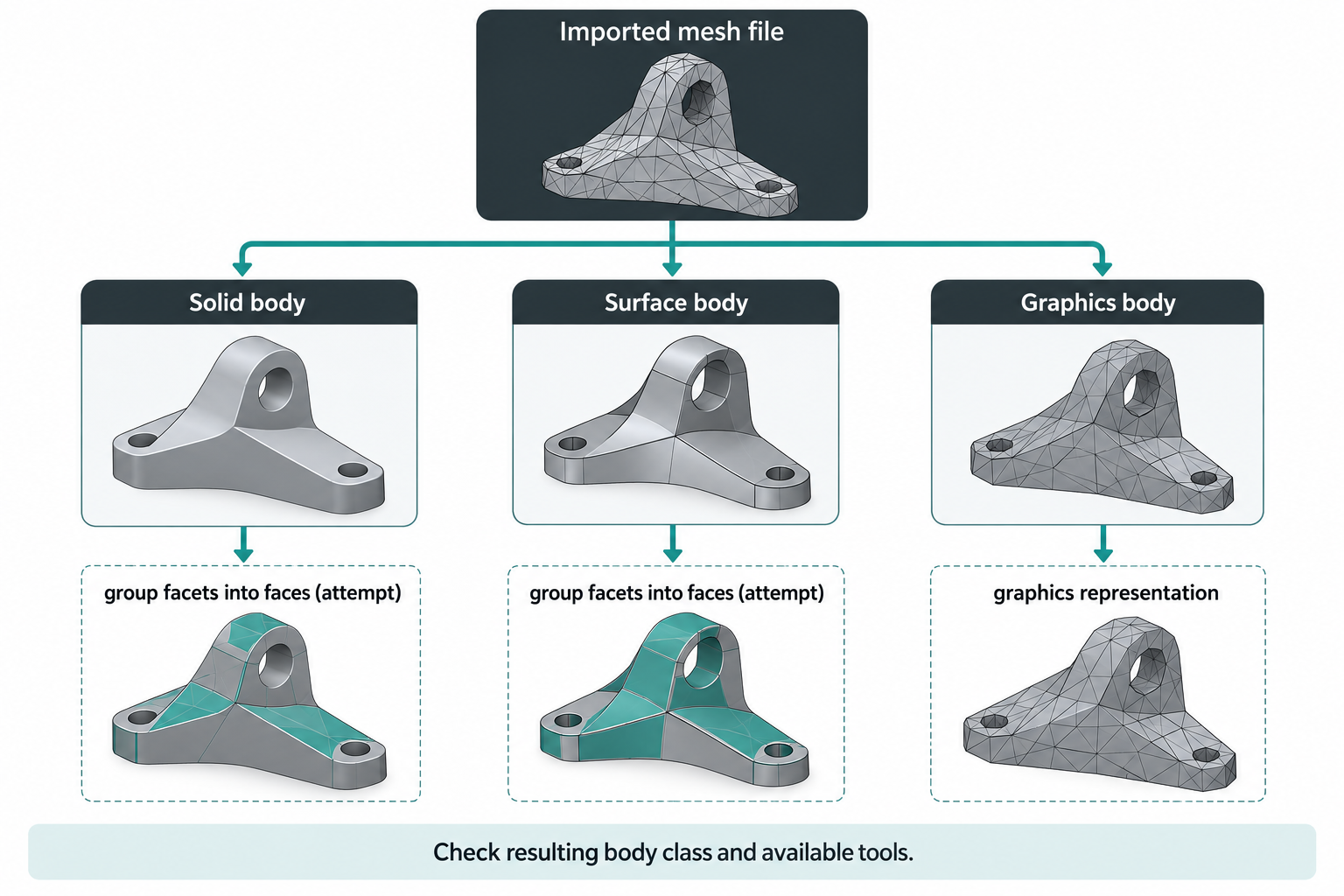
Mesh-file import options can produce materially different receiver objects. SOLIDWORKS 2025 documents import as a solid, surface, or graphics body and offers facet-grouping options on solid and surface paths. Grouping is an attempt to create selectable faces; it does not promise analytic recognition. A graphics body also has a narrower operation set than a mesh BREP body. Check the actual result in the receiver rather than inferring capability from the file extension.
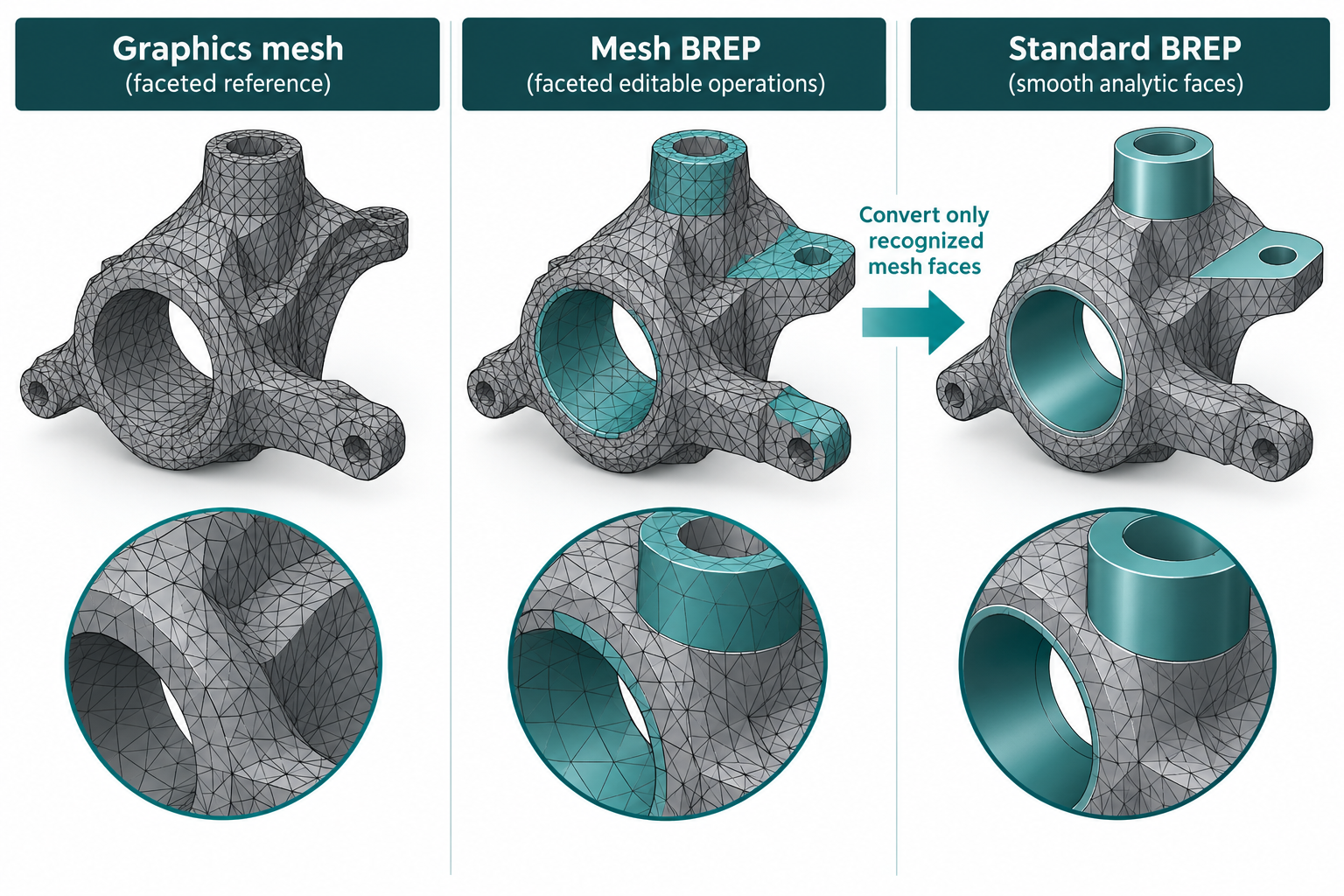
For SOLIDWORKS 2025, the documented mesh BREP feature list includes operations such as chamfer, combine, draft, fillet, shell, and split. Graphics mesh support is narrower; for example, its move/copy behavior is translate-only, and sectioning is a graphics section. Some operations retain mesh BREP output, and facet-based mass properties may differ. Treat the release-specific support table as a starting point, then check whether the chosen operation gives the required result on the actual model. SOLIDWORKS documents the import choices and body-class operation limits.
Where a mesh BREP contains segmented, recognized faces, SOLIDWORKS 2025’s Convert Mesh to Standard operation can convert selected recognized faces to standard BREP. Its guidance says recognition works best for well-defined planar, cylindrical, conical, or spherical geometry without significant noise; it gives no numeric noise threshold. Unrecognized regions are not thereby converted, and the resulting feature is receiver-authored rather than the source model’s history. Verify the selected faces, remaining mesh, dependencies, and downstream edit. The conversion guidance describes this boundary.
Reconstruct from scan data in stages
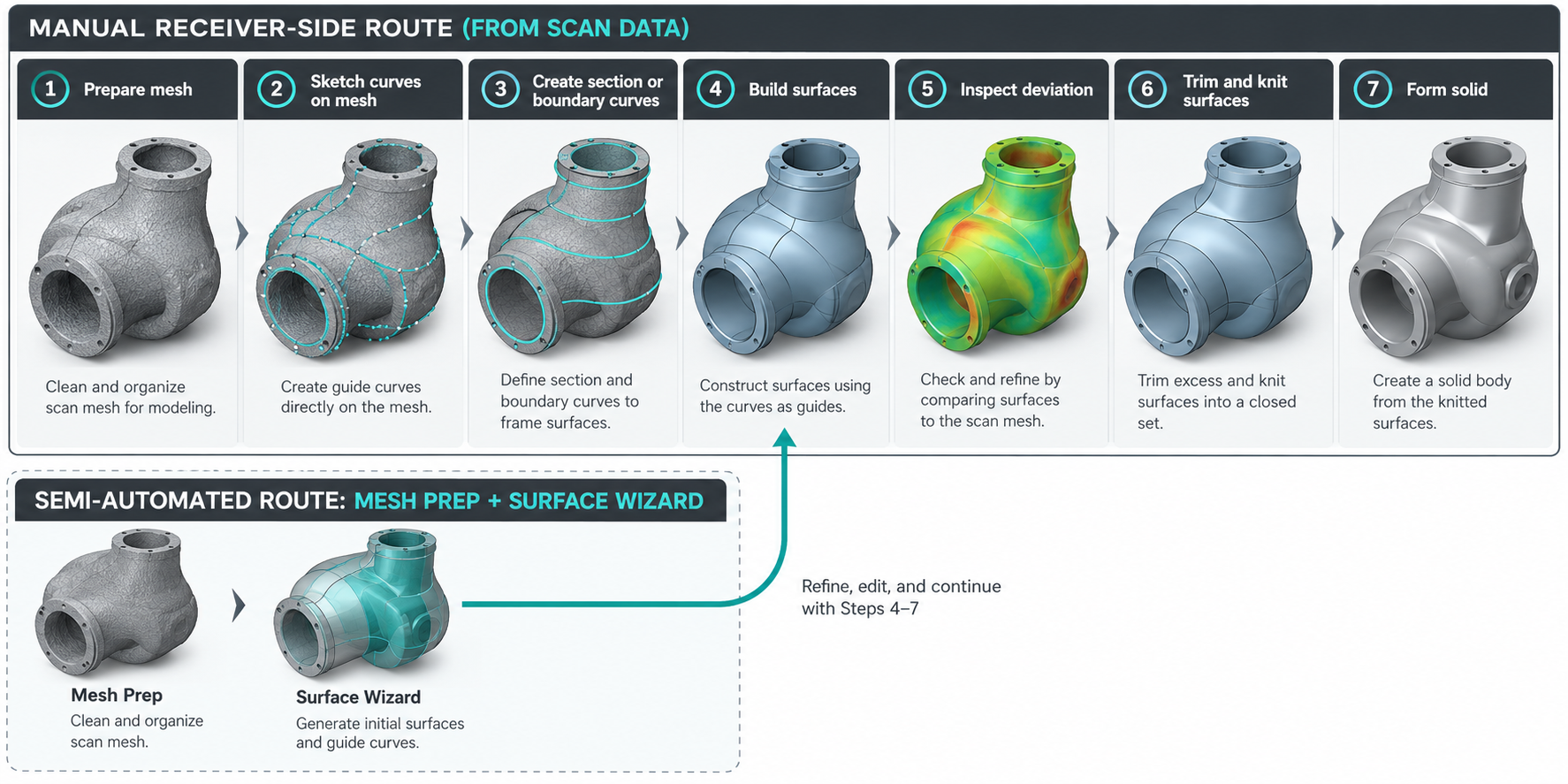
SOLIDWORKS 2025 ScanTo3D documents a manual route and a semi-automated route. The manual route prepares the mesh, builds sketches and section or boundary curves on it, creates surfaces, checks deviation, trims and knits the surfaces, then forms a solid. The semi-automated route uses Mesh Prep and Surface Wizards; the help describes automatic surface creation for organic shapes and guided creation for analytical faces. These workflows create receiver-authored geometry. Deviation analysis is a comparison aid with chosen settings, not a universal tolerance or proof that the model meets the required fit. The ScanTo3D guide describes both routes.
Convert only when the output class helps
Conversion can make a mesh usable with solid or surface operations, but the output may still be faceted or depend on the mesh’s quality. Autodesk Fusion documents faceted and prismatic conversion methods: faceted conversion retains individual mesh faces, while prismatic conversion groups faces to infer prismatic shapes. In Fusion, a parametric Convert Mesh operation remains an editable timeline feature; a Base Feature does not retain upstream parametric relationships. Those are Fusion receiver-history choices, not recovery of the source object’s history. Autodesk’s conversion guidance also states that a watertight mesh converts to a solid body, while an open mesh converts to a surface body that may need stitching or patching before it can be closed.
Confirm that the receiver produced the body class your next operation requires. A conversion dialog completing, a solid appearing, or a timeline feature being present does not show that the model supports the change you need. Inspect the converted areas and dependent features on a copy before treating the result as editable for the project.
Reconstruct new control from sections
When the next change depends on dimensions or relationships that the scan does not contain, rebuild the relevant geometry instead of trying to recover an absent source feature tree. A section-based workflow can create new profiles from the observed surface. In Fusion, a mesh section sketch records the intersection between a selected mesh and a section plane. Fitted sketch curves can then be used to create new parametric solids or surfaces. Autodesk documents the section sketch and curve fitting as operations for reconstructing a mesh; the documentation does not prescribe universal section spacing, fit tolerance, or acceptance criteria.
Treat every recreated sketch, constraint, and feature as receiver-authored. Record which areas came from the scan and which were rebuilt. Test whether those new controls support the intended edit and whether unchanged interfaces still align with the measured baseline.
For an organic surface, remeshing or subdivision may suit the next task better than a prismatic solid. Rhino 8’s QuadRemesh can produce a quad mesh from surfaces, meshes, or SubD objects and can optionally convert the result to SubD. Its interpolation option changes whether the SubD lies on the quad mesh or may sit slightly inside or outside it. This is a surface and topology choice, not a parametric feature tree; compare it against the shape requirements that matter before using it downstream. McNeel’s Rhino 8 guidance describes those controls.
Test the actual edit
Use a test copy and a change that represents the downstream task:
- Record the input representation, source and receiver releases, units, placement, import settings, and any conversion or reconstruction steps.
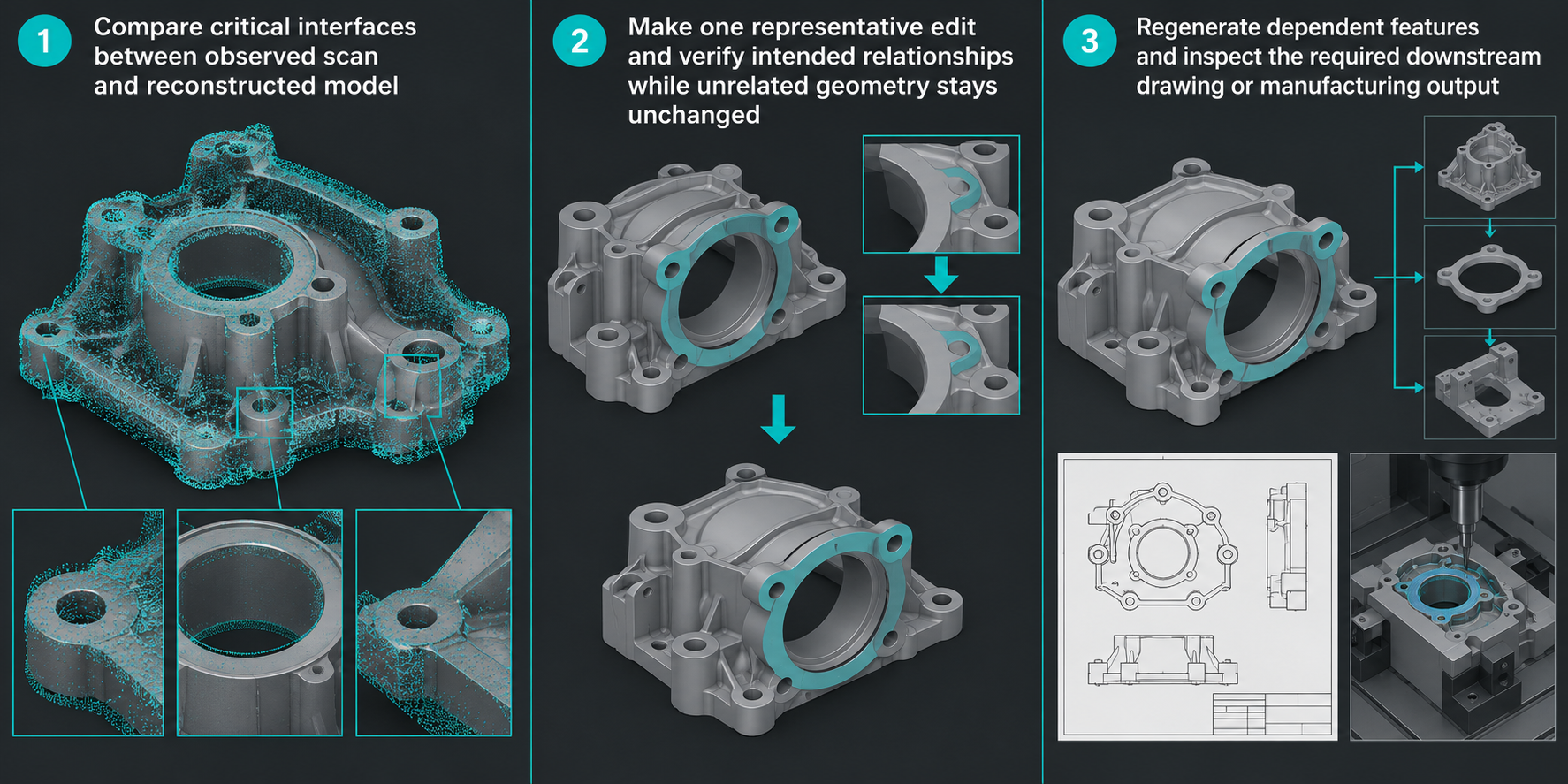
- Compare the received or reconstructed baseline with the agreed interfaces and dimensions. Choose comparison methods and tolerances from the project requirements; there is no universal scan-to-CAD threshold.
- Make the required edit. Check the changed geometry, constraints or parameters that matter, dependent features, and unchanged regions separately.
- Regenerate the full downstream model and create the required output. A visual match alone does not establish that a drawing, assembly, fixture, or manufacturing operation still works.
- If the workflow promises source updates, change or replace the source and verify which receiver work survives. Otherwise, record that the converted or reconstructed result is independent.
Accept the model only for the tested purpose and conditions. If a required dimension or relationship cannot be recovered from the scan, request source design information or keep the scan as the reference while rebuilding only the geometry that needs controlled edits.
Key points
- A scan describes observed shape; it does not supply the source model’s design history.
- Keep a reference, edit the supported mesh representation, convert, or reconstruct based on the required change.
- Conversion and section-based reconstruction create receiver-side geometry with their own limits.
- Test the specific edit, interfaces, dependencies, and downstream output on the target model.