A DWG file can open in a newer AutoCAD-based product while a file saved by a newer release may not open in an older one. Saving to an earlier format is a separate conversion step, and Autodesk documents cases where that step strips or changes drawing information. These statements apply to the AutoCAD-based products and releases in Autodesk’s documentation; they are not a rule for every CAD format.
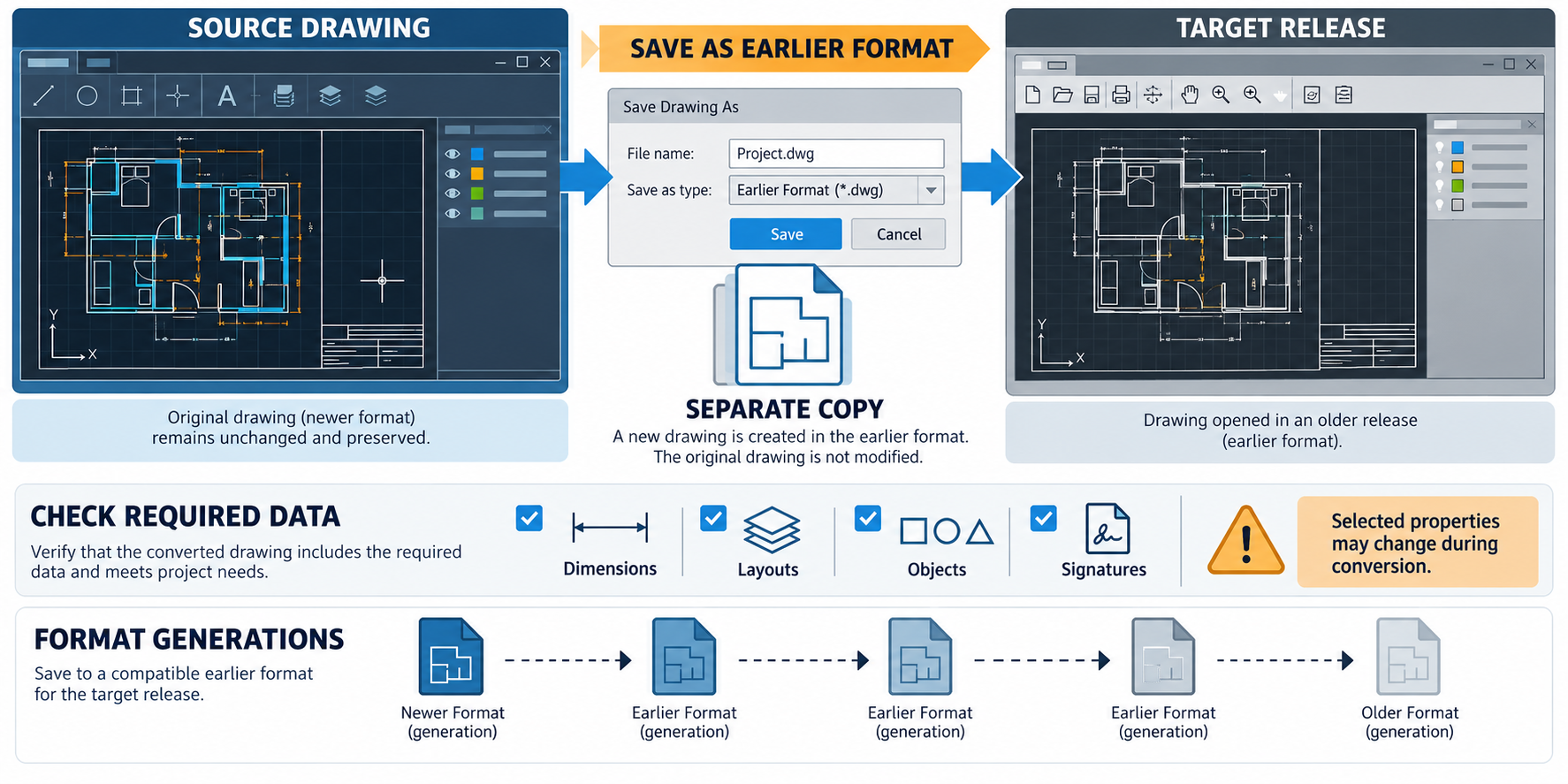
Match the file format to the receiving release
Autodesk’s AutoCAD 2027 documentation lists these native drawing-format generations for AutoCAD-based products:
| Drawing file format | AutoCAD-based product releases listed |
|---|---|
| AutoCAD 2018 | AutoCAD-based products released 2018–2027 |
| AutoCAD 2013 | 2013-based through 2017-based programs |
| AutoCAD 2010 | 2010-based through 2012-based programs |
| AutoCAD 2007 | 2007-based through 2009-based programs |
| AutoCAD 2004 | 2004-based through 2006-based programs |
| AutoCAD 2000 | 2000-based through 2002-based programs |
| AutoCAD R14 | AutoCAD R14 |
| AutoCAD R12 DXF | AutoCAD R13 and R12 |
AutoCAD Mechanical uses its own Mechanical DWG format and is excepted from Autodesk’s shared-format statement. Treat the table as Autodesk’s release grouping, not a test of a particular drawing or receiver installation. A shared DWG generation does not show which objects, properties, references, or editing operations will remain usable.
Opening an older file is not the same as downgrading
Autodesk says newer AutoCAD-based products generally open earlier DWG formats, while older versions cannot open newer DWG formats. Its AutoCAD 2027 help describes saving to an earlier format as a conversion: information specific to the current release may be stripped or converted to another object type.
Autodesk gives a conditional exception: if an older drawing is opened in the current release and no information specific to that current release is added, it says the drawing can be saved back in the previous format without data loss. It recommends using a different filename because saving to an earlier format may lose data. Keep the no-loss condition attached to the statement; it does not establish that every drawing has no release-specific information or that every property will survive another conversion path.
Check which drawing information may change
Autodesk’s AutoCAD 2027 help lists specific limitations for earlier formats. Examples include:
| Earlier-format boundary | Documented consequence |
|---|---|
| DXF | Traces are not supported in DXF; Autodesk lists trace support in drawing formats 2010 and later. |
| AutoCAD R12/LT2 DXF | Dimension associativity is not maintained when reopened in the current release. Some object types are converted to lines, arcs, or circles; groups, complex linetypes, OLE objects, and preview images are not displayed; multiple layouts and layout names are lost. |
| AutoCAD 2007/LT 2007 and earlier | Objects larger than 256 MB are not supported. This is an object limit, not a stated limit on total drawing-file size. |
| AutoCAD 2000/LT 2000 | Encryption and digital signatures are not preserved; Autodesk also notes that file size can increase. |
| Release 2012 format with model documentation views | Drawing views display and list, but only the MOVE command is available to edit them. |
| AutoCAD 2013 DWG generation | Drawing views created by AutoCAD 2014 cannot be edited in AutoCAD 2013 even though both releases use the AutoCAD 2013 file format. |
This is a selected set of Autodesk-documented examples, not a complete loss inventory. The affected properties depend on the drawing and target format. A file that opens is not evidence that dimensions, layouts, signatures, drawing views, or other required information remain intact.
Protect the source and validate the copy
Before converting a drawing for an older release:
- Identify the recipient’s exact product and release, then select the corresponding format from the sharing table.
- Save to a different filename. Autodesk warns that saving to an earlier format may cause data loss and recommends keeping the current drawing under another name.
- List the objects and properties that matter to the next task, including any features with documented format limits.
- Open the converted copy in the actual target release and check those objects and properties there.
- Validate the drawing for its intended operation; opening successfully does not establish that it remains editable or fit for downstream use.
For other product families, verify their own version and conversion documentation. Directional support explains how to read those claims; translation mechanics explains why support and successful opening do not establish preservation.
Key points
- AutoCAD’s documented format map is version-scoped and applies to AutoCAD-based products.
- Opening an older DWG and saving a newer drawing to an older format are different operations.
- Autodesk documents information that may be stripped, converted, or lost on selected downgrades.
- Keep the source drawing, test the converted copy in the actual recipient release, and check the required downstream information.