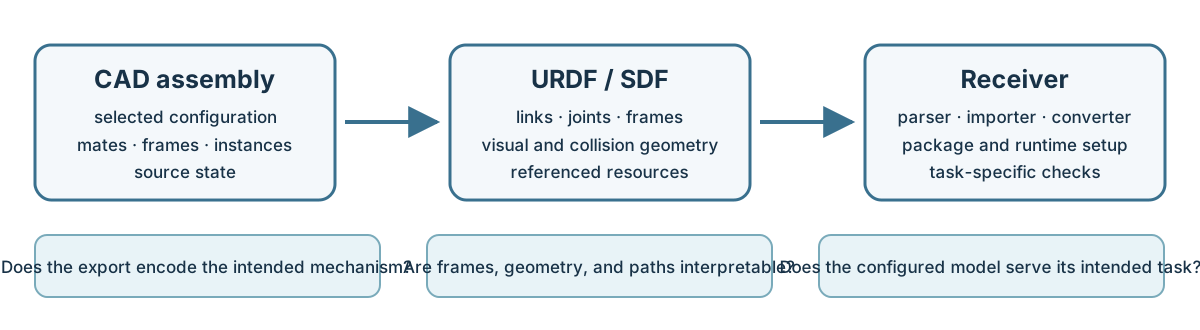
A CAD assembly can be a starting point for a robot model, but an export option does not tell you how assembly constraints become robot links and joints. Treat the result as a representation handoff to verify: identify the intended kinematics, geometry, frames, resources, and receiver behavior before relying on it in planning or simulation.
What the export declaration says
Onshape’s current export help lists URDF for Assembly export and offers STL, glTF, GLB, or OBJ as the selected geometry representation. The page also documents mesh-resolution controls and an option to orient exported models Y-up. Its release history records the URDF option in release 1.212, STL and OBJ additions in 1.214, and GLB in 1.221. These are product declarations; they do not establish how a particular assembly is mapped, which URDF version or features it emits, or whether the result works in a receiver.
The help page does not specify a general mapping from CAD mates to URDF links, joints, limits, or inertial properties. Nor does a geometry choice establish that the meshes, transforms, or robot semantics are correct for a particular task. Inspect an actual export and compare it with the intended mechanical model.
URDF and SDFormat describe structure differently
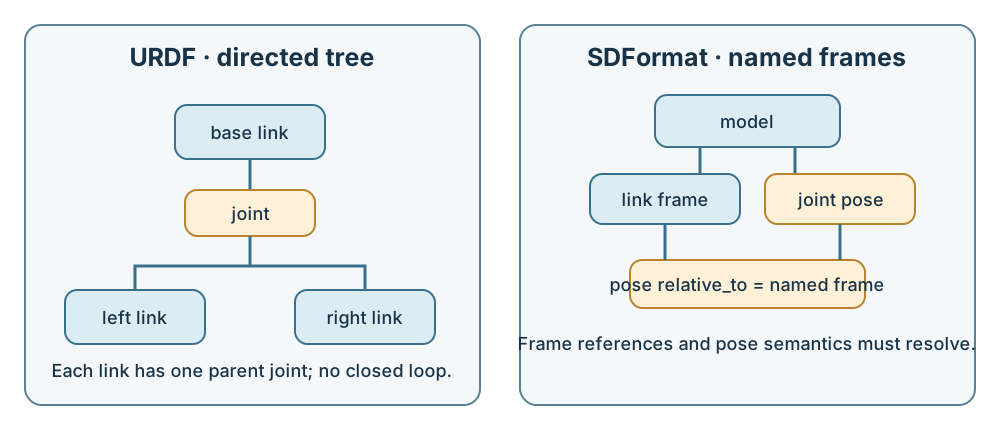
URDF describes links and joints in a directed tree: a link has at most one parent joint, and closed kinematic loops are not represented as ordinary URDF joint topology. SDFormat (SDF) has model, link, joint, and frame elements with pose relationships that can be expressed relative to named frames. Similar concepts do not make the two formats interchangeable; conversion requires decisions about topology and frame meaning.
Both formats use explicit coordinate conventions. SDFormat pose values use meters for position and radians for roll, pitch, and yaw, with an extrinsic X-Y-Z rotation convention. Check the source assembly’s units, axes, origins, and joint frames against the chosen robot description. A Y-up export control alone does not prove that the receiver will interpret every coordinate as intended.
Visual geometry and collision geometry can also serve different purposes. A detailed mesh may be suitable for display while a simpler collision shape is more practical for contact or motion checks. Keep those roles explicit, and validate any generated collision representation for the intended use rather than assuming it matches the visual model.
The file may not be the whole robot description
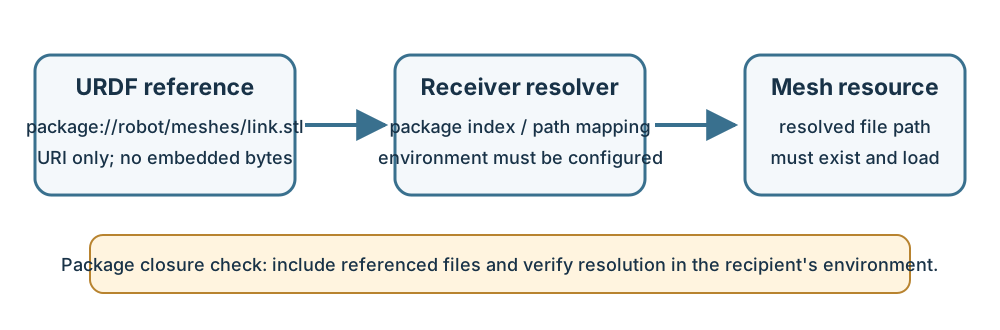
Mesh references and other resources may be external to the XML description. A package:// URI depends on a recipient environment that can resolve the named package; copying the URDF without its referenced meshes or required package structure can leave the receiver unable to load the model. Record the referenced files and the resolution method, then test from the same kind of environment the recipient will use.
SDFormat also documents composed models whose definitions and resources are organized across model directories. Treat the description and its referenced files as a package: inventory the paths, preserve the directory structure the receiver expects, and verify the package after relocation.
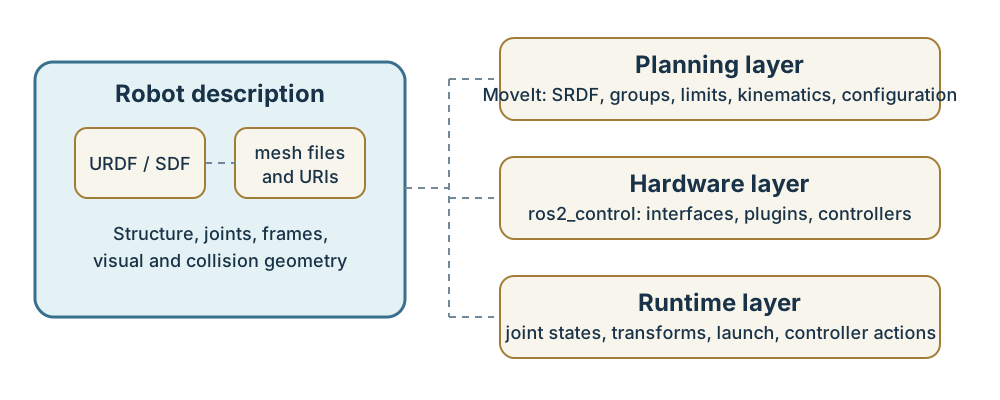
Some receiving workflows require additional artifacts beyond URDF. In MoveIt, URDF describes physical structure while SRDF adds planning-specific information such as groups and named configurations. MoveIt configuration packages may also carry joint limits, kinematics, launch, and controller settings. ROS 2 Control uses a framework-specific <ros2_control> section and hardware plugins; these are implementation inputs, not generic CAD-derived content.
Receiver processing can change the result
Importers and converters have their own choices. Isaac Sim 6.2 documents options to merge fixed joints or meshes, generate collision geometry from visual geometry, resolve package:// paths, and alter the root attachment. Gazebo’s URDF-to-SDF path documents fixed-joint lumping behavior and extensions that can affect whether a fixed joint is retained. Such settings are part of the effective interpretation; record them with the receiver version and inspect the resulting model.
Do not treat a successful parse or import as proof of correct kinematics, collision behavior, resource closure, or planning suitability. Compare link and joint names, parent-child relationships, limits, frame transforms, mesh paths, and collision geometry against the intended assembly. Then check the specific downstream task, such as loading a planning group or running a simulation, with the recipient’s actual configuration.
A practical handoff record
Before export, agree on the selected assembly state and intended robot behavior. Record:
- source product, release, assembly configuration, and included or suppressed instances;
- URDF or SDF version and the intended link, joint, frame, and coordinate conventions;
- geometry representation, mesh resolution, units, and visual versus collision roles;
- all referenced meshes, package URIs, and the recipient’s resource-resolution environment;
- receiver product and version, import/conversion settings, and any topology changes;
- separate planning, hardware, controller, and runtime inputs required by that receiver; and
- checks and evidence for the actual task, including what remains unverified.
Keep the representation question separate from a named product route and from acceptance. For broader support declarations, see directional and versioned support; for mapping questions, see translation mechanics; and for file dependencies, see containers, packages, and external resources.
Key points
- A CAD export declaration does not establish CAD mate-to-link/joint mapping or a correct generated robot model.
- URDF and SDFormat have different topology and frame semantics; conversion requires receiver-specific checks.
- Meshes, package resolution, planning data, hardware interfaces, and runtime inputs may sit outside the main description file.
- Parser or importer success is not proof of kinematic correctness or task acceptance.