A model tree, a displayed assembly, a bill of materials (BOM), a drawing parts list, and an exported spreadsheet can describe related data while showing different members or quantities. A difference is not automatically a transfer defect. First identify the state and rules that produced each view, then compare the same objects at the same level.
This guide addresses the product-structure question: whether a member or quantity difference is explained by a selected view, report scope, or counting rule, or remains unresolved for receiver testing. It does not define an enterprise BOM process or a universal BOM model.
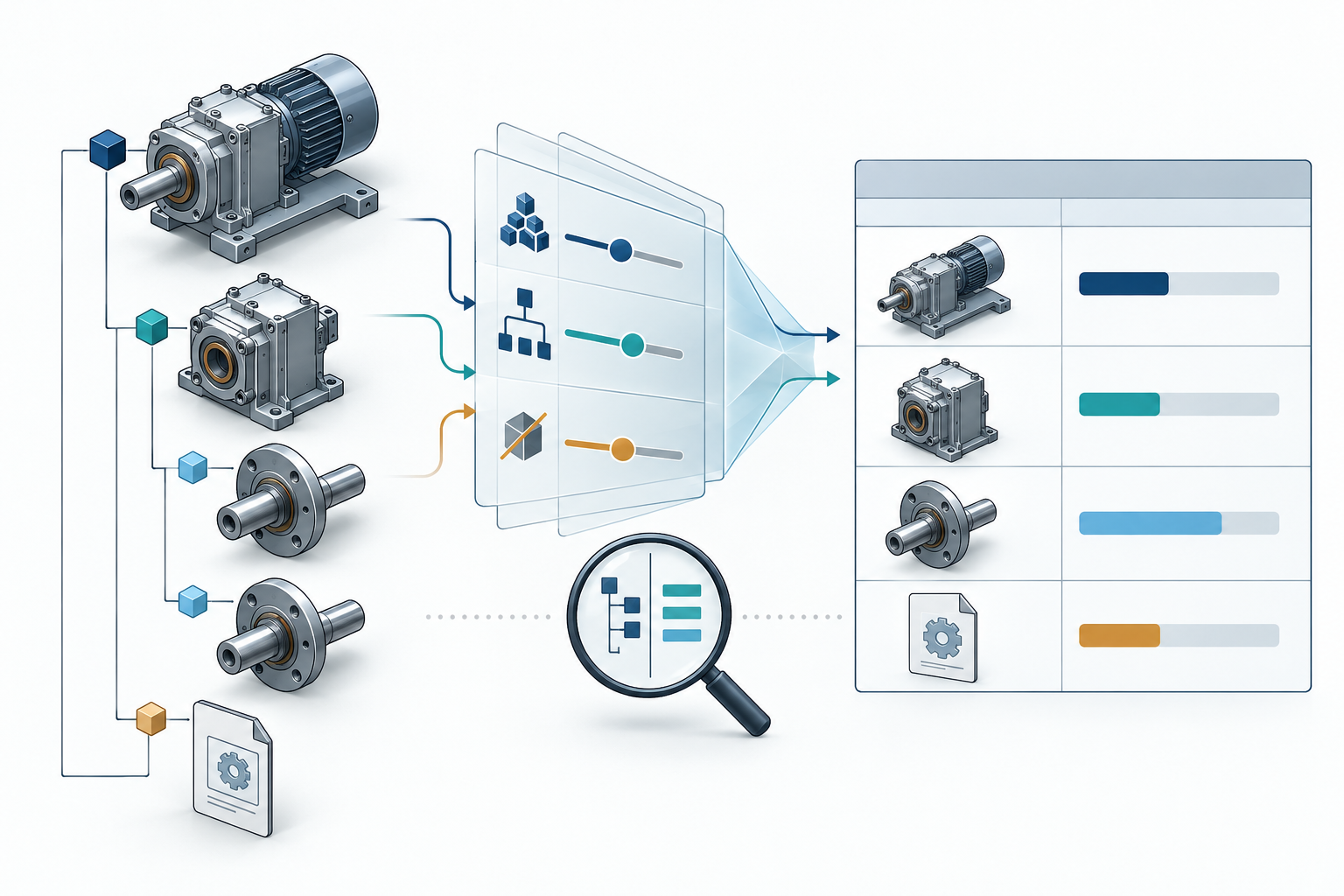
Define what is being compared
Record these details for both the source and received result before comparing rows:
| Comparison detail | Record |
|---|---|
| Source state | Assembly or product revision, configuration/model state, effectivity where relevant, and selected representation. |
| View or report | BOM type, drawing list, comparison view, spreadsheet, selected columns, filters, and export operation. |
| Membership level | Component definition, occurrence/use, grouped row, non-geometric item, or other source-defined level. |
| Hierarchy depth | Whether subassemblies remain rows, are promoted, are collapsed, or are expanded to leaves. |
| Counting rule | Occurrence count, per-instance amount and unit, reported total, reference-designator count, or override. |
| Receiver task | Inspection, supplier ordering, reuse, change, or another named operation the result must support. |
Keep visibility, loading, model membership, BOM participation, and report output separate. An object can be present in a model but excluded from one BOM view; a listed BOM item may have no geometric body. Likewise, flattening a table or displaying a flat list does not by itself describe how the underlying model graph was changed.
Check view rules before counting differences
The terms and controls below are product-specific examples. Apply them only to the named system and release, and verify the actual source state used for the handoff.
In Onshape, the BOM can be displayed as a structured or flattened view, and a subassembly can be represented according to the selected BOM settings. Parts can be excluded from a BOM. The CSV operation depends on expanding the relevant nested subassemblies first; an unexpanded table can therefore produce a report that omits nested rows. Onshape also documents non-geometric items in a BOM, so a row is not proof that a corresponding solid body exists. See Bill of Materials and Working with the BOM Table.
In Autodesk Inventor, component BOM structure settings affect whether a component appears as a row and how children are represented. For example, a Phantom component can be absent as its own row while its children are promoted into the BOM; a Virtual component can carry BOM properties without a unique geometry file. These are Inventor rules, not general definitions of phantom or virtual objects. Inspect the selected view and Inventor’s BOM structure guidance before treating row membership as model membership.
A “no differences” result is meaningful only for the view and filters the comparison actually included.
Compare quantities at their defined level
Do not assume one row equals one occurrence or that one quantity column has the same meaning across systems. In Inventor 2026, Item QTY reports the occurrence count, Unit QTY represents an amount for each component instance with its unit, and Total QTY is the resulting extended quantity. A static quantity override can change the reported value. Preserve the column names and units when recording results; see About BOM Quantity.
Windchill provides a different bounded example. Named occurrences can carry occurrence identity such as a reference designator, while the displayed structure can also summarize unnamed use. Consequently, named reference designators should not be treated as a complete count of all uses. Check the source’s occurrence and occurrence display behavior before comparing row or designator counts.
Distinguish a report snapshot from change instructions
A spreadsheet may represent a view of current membership, or it may instruct a receiving system to make selected changes. In Windchill’s documented structure import, rows can request Add, Replace, or Delete actions; during modification, an existing link omitted from the spreadsheet is not automatically deleted. The import result must therefore be read according to the operation and rules in Considerations for Importing Product Structures or BOMs, not as a full replacement snapshot.
That same Windchill R13.1.2.0 workflow has repeated-parent constraints: repeated components across levels must consistently reuse the same child part, conflicting row definitions use the first occurrence, and subcomponents are not loaded when a parent is imported more than once. Quantity, unit of measure, and reference designators must also align; for unit “each,” the designator count cannot exceed the quantity. These are importer-specific conditions to check before interpreting the resulting structure, not general BOM rules.
Comparison tools also have a defined scope. Windchill structure comparison lets the user select versions, filters, attributes, and related information. Capture those choices with the result and consult Starting a Part to Part Structure Comparison. A comparison can only establish whether the selected scope differs; it does not establish that an external CAD exchange preserved the same data.
Make a reconciliation record
Use a row for each material difference or an explicitly checked aggregate:
| Field | Example question |
|---|---|
| Source member or group | Which definition, occurrence, or grouped item is expected? |
| Expected value | Is the requirement a presence check, count, amount, unit, or identifier? |
| Source rule | Which configuration, exclusion, grouping, promotion, or report-depth rule applies? |
| Received observation | What is present in the received model and its selected report? |
| Explanation or gap | Does a documented view rule explain the result, or is evidence still missing? |
| Receiving check | Which operation must the recipient perform successfully? |
For example, a missing child row may be explained by an unexpanded Onshape BOM export. A Phantom parent that has no row may be consistent with Inventor’s promotion behavior. A quantity mismatch may reflect different units or a static override. Record the relevant settings and confirm them against the exact source state rather than guessing from the final row count.
If no source rule explains a required difference, treat it as unresolved. Compare the receiver’s structure and selected BOM/report against the recorded requirement, then perform the task that motivated delivery, such as selecting an occurrence or preparing a supplier list. The product-structure acceptance guide combines this result with identity, dependency, and receiver checks.
Key points
- A model tree, BOM view, parts list, and spreadsheet can have different membership rules.
- Row count, occurrence count, item amount, and total quantity are separate values; preserve units and overrides.
- Record source state, selected view, filters, depth, grouping, and export or import operation before comparing results.
- Treat product documentation as evidence about that product’s workflow, not proof of cross-system preservation.
- Resolve the receiving task with receiver-side checks; matching rows alone do not establish usable structure or acceptance.