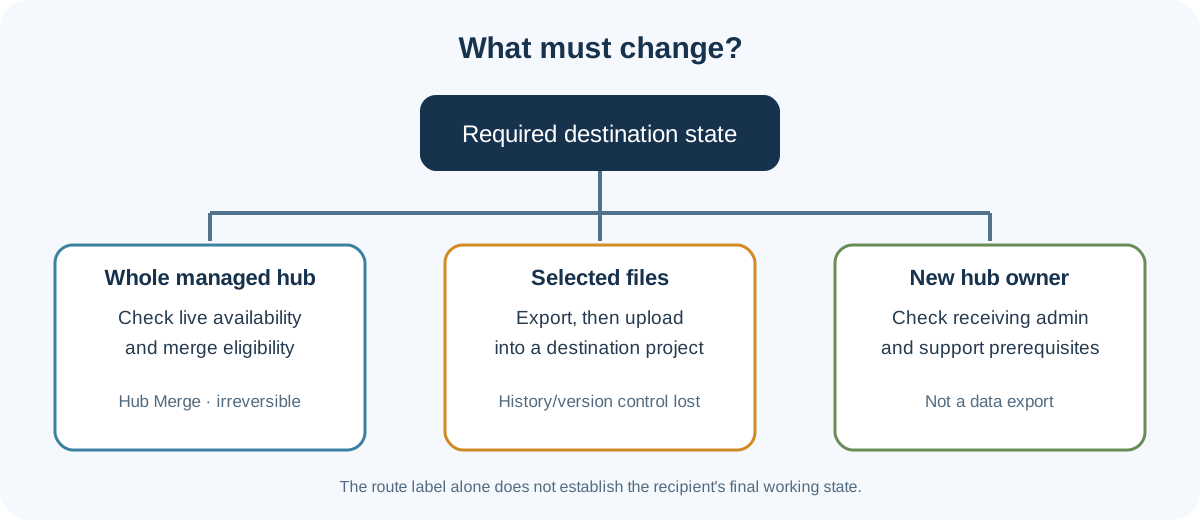
Moving Fusion data between accounts can mean three different things: consolidating two hubs, copying selected files into another hub, or changing who owns a hub. Choose the operation that matches the required destination state. A license change alone does not move project data, and none of these routes should be treated as proof that a particular recipient can continue the design.
First establish which operation is needed
Hub Merge is Autodesk’s documented whole-hub consolidation route for eligible Collaborative Editing hubs. It is not a selected-project transfer: the source hub’s projects and other described hub state move into the destination. The merge requires an administrator for both hubs and compatible hub types. Autodesk’s support guidance describes subscription, source-hub, project-type, and folder-membership blockers as well; check the current requirements for both hubs before scheduling.
Availability needs a live check. An Autodesk Help notice accessed on October 15, 2026 said Hub Merge was temporarily paused while data management was updated, while Autodesk transfer guidance and other merge pages also describe the operation. The documentation does not establish whether the pause has ended or whether the service is available for your hubs today. Check current official status and whether the merge action is offered to an eligible administrator; do not plan a deadline around the route until availability is confirmed.
File export and upload moves selected files, not the project as a managed unit. Autodesk says this fallback does not preserve design history or version control. Plan to rebuild the destination project and verify required references, properties, drawings, and recipient operations. The documented route does not establish dependency closure or a matching design state.
Hub ownership change is a support-mediated request with separate access prerequisites. Autodesk says the receiving owner must already be a hub administrator and must not already own a hub. Autodesk Account license administration does not itself grant Fusion hub ownership or access. If the need is only a subscription change under the same sign-in, first confirm the hub remains associated with the intended Autodesk account; changing a license is not the same as moving the hub.
Compare the documented paths
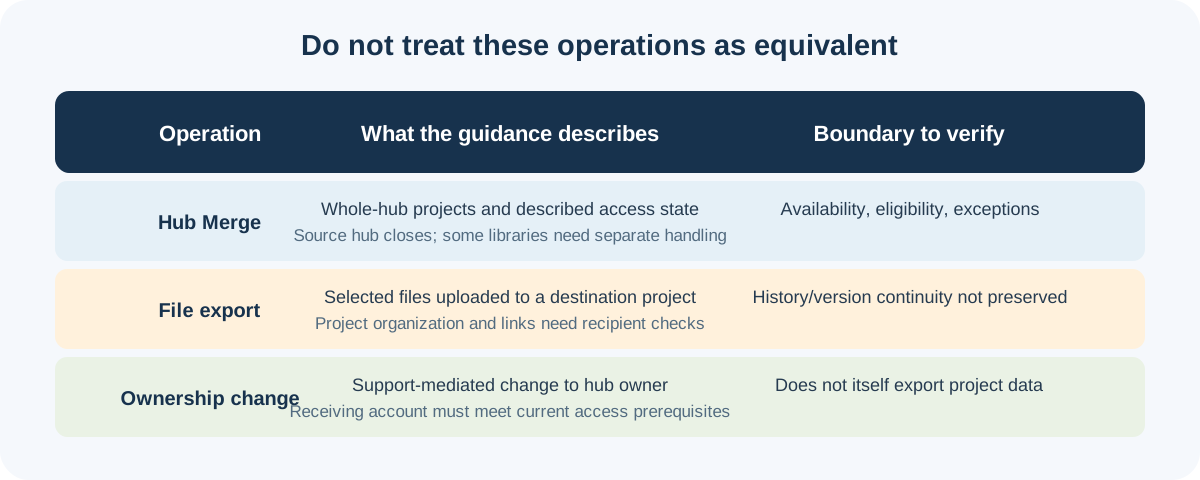
| Need | Candidate operation | Boundary to plan around |
|---|---|---|
| Consolidate eligible hubs and their managed state | Hub Merge | Availability is time-sensitive; both hubs, administrators, entitlements, projects, and memberships must meet current requirements. |
| Move selected designs before a merge is available, or when merge is ineligible | Export files, then upload into a destination project | Autodesk says this does not retain design history or version control; the destination project and its relationships need separate checks. |
| Change the person who owns a hub | Request an ownership change through Autodesk Support | The receiving account’s existing hub-admin rights and ownership status matter; a license administrator is not automatically a hub administrator. |
If Hub Merge is available
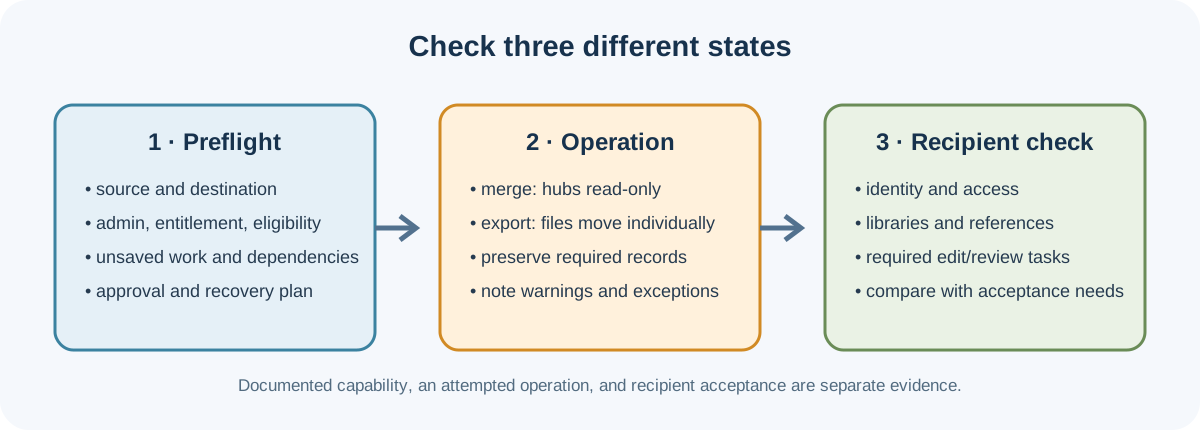
Prepare the source and destination as a whole-hub change. Confirm the source data, destination, administrators, entitlement, collaborative-editing status, legacy project upgrades, folder membership limits, and any current warning conditions. The troubleshooting list is not a guarantee that a particular hub qualifies.
Tell members to save their work and leave Fusion desktop and web clients. Autodesk says both hubs become read-only during the operation. Export manufacturing-tool data from the named libraries beforehand; the guidance describes a separate upload into the destination afterward. Review name collisions and the documented source-hub ID suffix rule where applicable. The operation is described as irreversible once underway, so secure business approval and an independent recovery plan before starting.
Afterward, confirm the destination is the working hub and inspect the data classes the project needs. Autodesk describes migration of projects, folders, users, groups, permissions, and access, but that documentation is not a test of your hub. Check project identity, member access, libraries, references, required histories, and recipient tasks. Do not assume the source hub or its recent-item lists remain available.
If files are exported individually
List the exact designs and related files required for the receiving task. Export them from an account that can access the source, store the outputs in a controlled location, and upload them into the intended destination project. The documented fallback does not promise project structure, design history, version-control continuity, or complete reference closure. Record the source state and export choices, then have the recipient open the uploaded data and check the relationships, properties, and editing operations that matter. Recreate missing organization or links deliberately; a successful upload is not acceptance.
If the source account is expired, unsubscribed, or has only Personal Use access, Autodesk describes additional limits. Verify actual access and current account eligibility before relying on an export. Do not assume a company email domain or a license reassignment grants access to another person’s hub.
Decide from the recipient’s required state
Before moving data, write down whether the receiver needs the entire managed hub, selected editable files, source history, project organization, permissions, libraries, or only a reference copy. Assign an owner to verify each required item after the change. If the operation cannot preserve a required property, identify a separate record or reconstruction process and get the receiving team to accept that boundary before cutover.
For broader route comparisons, see Reference, Package, or Neutral File?. For access, package, and synchronization checks across services, see Managed CAD Sharing.