A share link, package, or synchronized folder is useful only if the recipient reaches the intended design state and has the right access for the task. Record what is live, selected, copied, consumed, or mirrored before treating a managed route as a delivery.
Name the state the recipient needs
| Recipient needs | What to establish | What the mechanism alone does not establish |
|---|---|---|
| Continue editing the managed source | Project, workspace or branch, accepted revision, recipient role, and required client | A view link or published subset does not grant authoring access |
| Review a published selection | Selected models, views, sheets, documents, published versions, and recipient permissions | The selected set is not proof that every external dependency was included |
| Receive a cloud subset | Exchange identity and version, source and target projects, storage region, connector, and update state | A visible exchange is not a complete native project or accepted task result |
| Mirror files locally | Selected folders, sync direction, schedule, conflict report, and removal policy | Folder synchronization does not show whether the CAD application resolves or interprets every file |
| View a chosen document state | Link target, selected workspace/version/tab, export permission, and revocation conditions | Viewing a state does not establish a local copy, offline access, or design editability |
The route-selection guide compares mechanism choices. Use this article after choosing a managed route to confirm delivery state and access.
A published package is a selected handoff
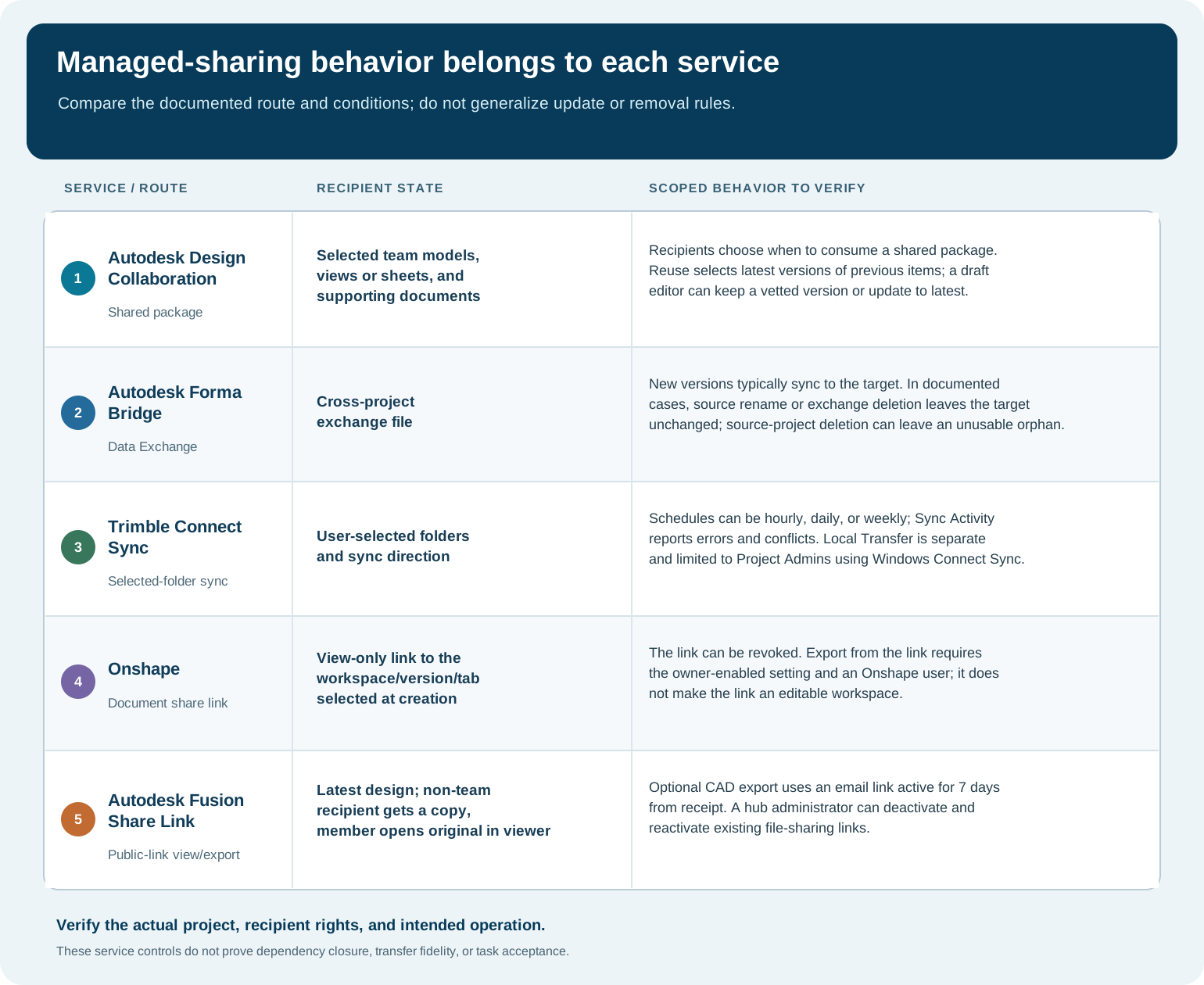
Autodesk Design Collaboration packages bundle selected team models, views, sheet sets, and supporting documents. A draft package stays within its authoring team until it is shared; sharing requires Edit permission on the team folder. Other teams can inspect a shared package and choose when to consume it. Reusing a package selects the latest versions of previously selected items, so review the selected versions again before sharing.
The package workflow can freeze selected deliverables at a chosen version to reduce disruption from later source changes. That is a versioned handoff choice, not an immutable archive or a dependency-closure guarantee. If an item changes after a package draft was vetted, the author is offered a choice to retain the vetted version or update to the latest published version. Record that choice and test the consumed model in the intended recipient project.
Bridge and folder sync have separate gates
For Autodesk Bridge file/folder sharing, the sender needs View + Download or higher on the selected source item. Importing to a target project also requires Edit permission on the destination folder. A destination project administrator can accept or reject shared files. Selecting automatic sync can create a bridge and automation when one does not already exist. These are access gates; they do not verify the receiving CAD task.
Autodesk’s Data Exchange sharing guidance describes a separate Bridge route. It lists US and EU storage regions, says older Data Exchange versions cannot be shared, and states that new versions are typically synchronized to a target. The same guidance distinguishes source rename or deletion from target behavior: those operations do not rename or delete the target copy. Deleting the source project can leave an orphaned target exchange that cannot be loaded or updated. When sharing an existing source V2, the documented target may begin at V1, and later source updates can advance the target on its own sequence; compare the actual source and recipient versions rather than assuming matching histories. Treat the documented short cache-window case as scenario-specific; it is not a general sync guarantee.
Trimble Connect Sync lets a user choose folders and whether files move to or from Connect; scheduled sync can run hourly, daily, or weekly. Its activity view reports operations, errors, and conflicts. Local Transfer is a separate Connect Sync operation that makes local files and folders the source of server state. A Project Admin creates the schedule; local additions, updates, moves, renames, and removals are applied to the server, and extra server items are removed. Before confirming, review the preview, which highlights removals in red. The home-page “Sync all” command does not run Local Transfer schedules. This is file and folder state control, not CAD coauthoring or model acceptance. The word “mirror” describes file/folder operations, not conflict-free CAD coauthoring or semantic equivalence.
Check account eligibility and project access separately
Revit Cloud Worksharing has an account/service eligibility checklist in Autodesk’s 2026 guidance: Revit and BIM Collaborate Pro subscriptions, access to the Cloud Worksharing service, an Autodesk Docs account, invitation to an Autodesk Docs project, and a folder permission that includes Edit. An administrator with user-management rights assigns the product. Passing this checklist does not show that the recipient can open every linked model or that a particular project has the needed data.
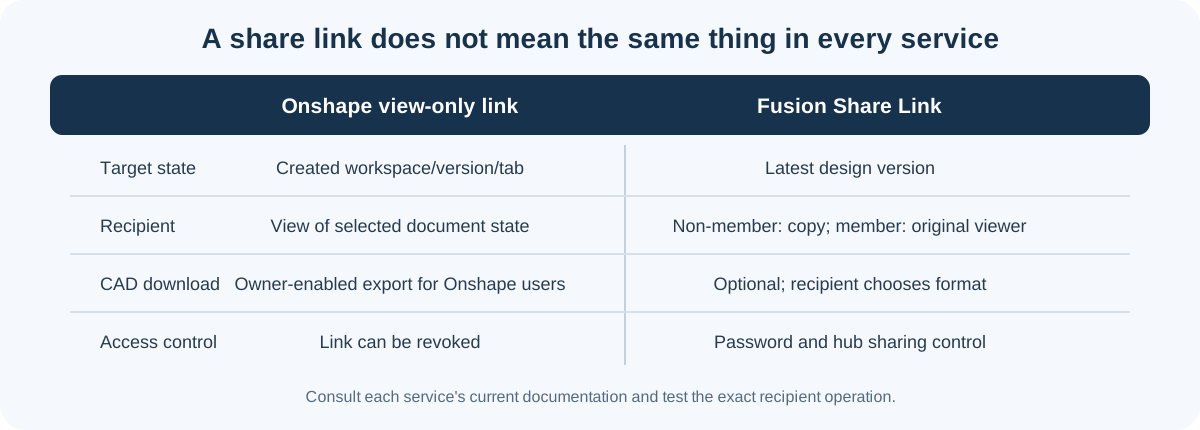
Onshape view-only document links have different semantics from permissioned collaboration. A link can open the state present when it was created, including its workspace or version and selected tab. An Onshape user can export through the link only when the owner enables it. The source does not establish export for viewers without an Onshape account. Link access can be revoked. A view link is therefore a state pointer with view permissions, not an editable shared workspace or an offline archive. In Onshape team sharing, team membership does not grant more document actions than the owner selected in the Share operation. Removing someone from a team removes team-granted permissions but leaves direct individual shares in place, so check both when confirming a recipient’s effective access.
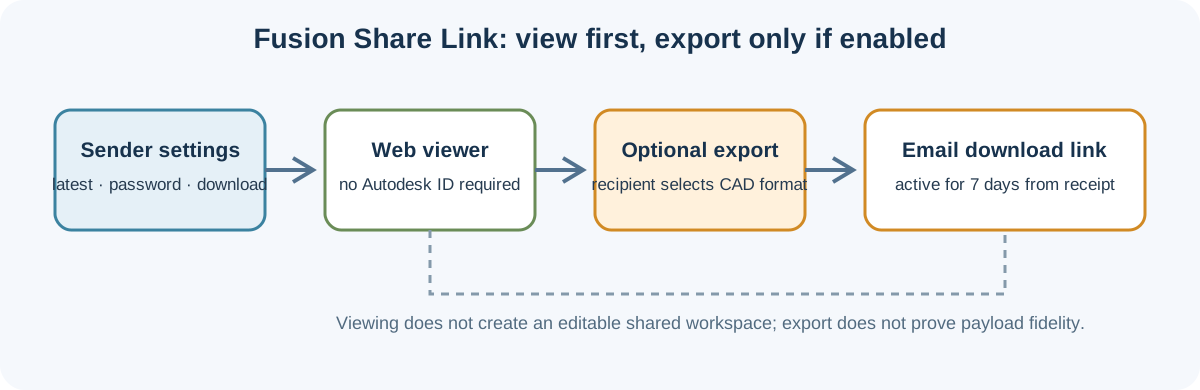
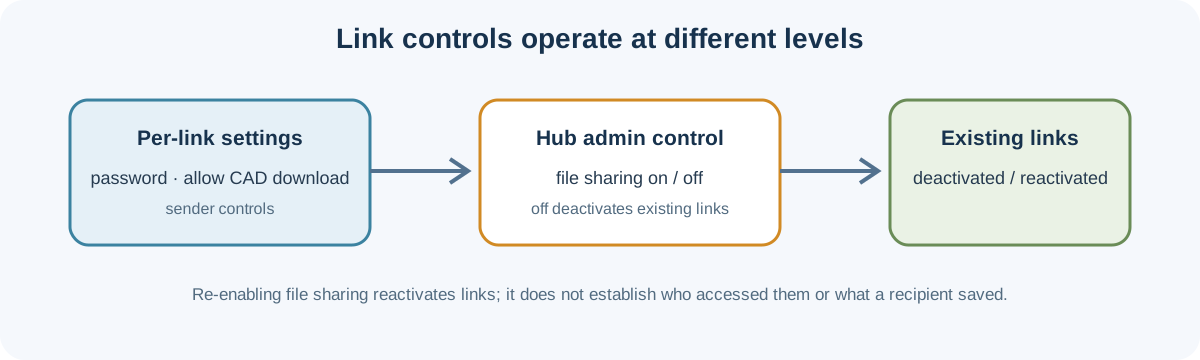
Autodesk Fusion Share Links instead expose the latest design version, with optional password protection and a separate CAD-download setting. A non-team recipient gets a copy; a project member opens the original in a viewer. When download is enabled, the recipient requests a chosen CAD format and receives an email link that Autodesk says stays active for seven days. A hub administrator can deactivate existing links by turning off file sharing and reactivate them by turning it back on. These settings do not establish export mapping or make a downloaded copy follow later design changes.
Verify the intended recipient state
- Record the source project, accepted revision/workspace, selected configuration, and any published or consumed version.
- Have the actual recipient open the route using their account, client, and permissions. Capture which model, file, tab, or folder they can access.
- Check links, libraries, external references, and other dependencies from the recipient’s environment. A package inventory or successful folder sync is not closure evidence.
- If updates matter, make a controlled source change and inspect the documented target behavior, version, conflict report, and any changes the recipient must accept or apply.
- Record who can propose, merge, approve, save, export, or revoke access. Test the task-required operation on the received state.
Keep durable issues and their model context with BCF issues and viewpoints; choose a live review or coauthoring session with Live model review or coauthoring?. Neither substitutes for a tested delivered state.
Key points
- Distinguish editable source, published package, cloud subset, mirrored folder, and view-only link.
- Record the project, selected version, region, permissions, connector/client, and update behavior.
- Package selection and sync status do not prove dependency closure or recipient acceptance.
- Test the operation the recipient actually needs, including any controlled update or returned change.