“Sent” is not the same as “received,” and “received” is not the same as “applied to the authoritative design.” A reliable collaboration brief names the object owner, the compared states, the operation mode, and the evidence needed to confirm the result.
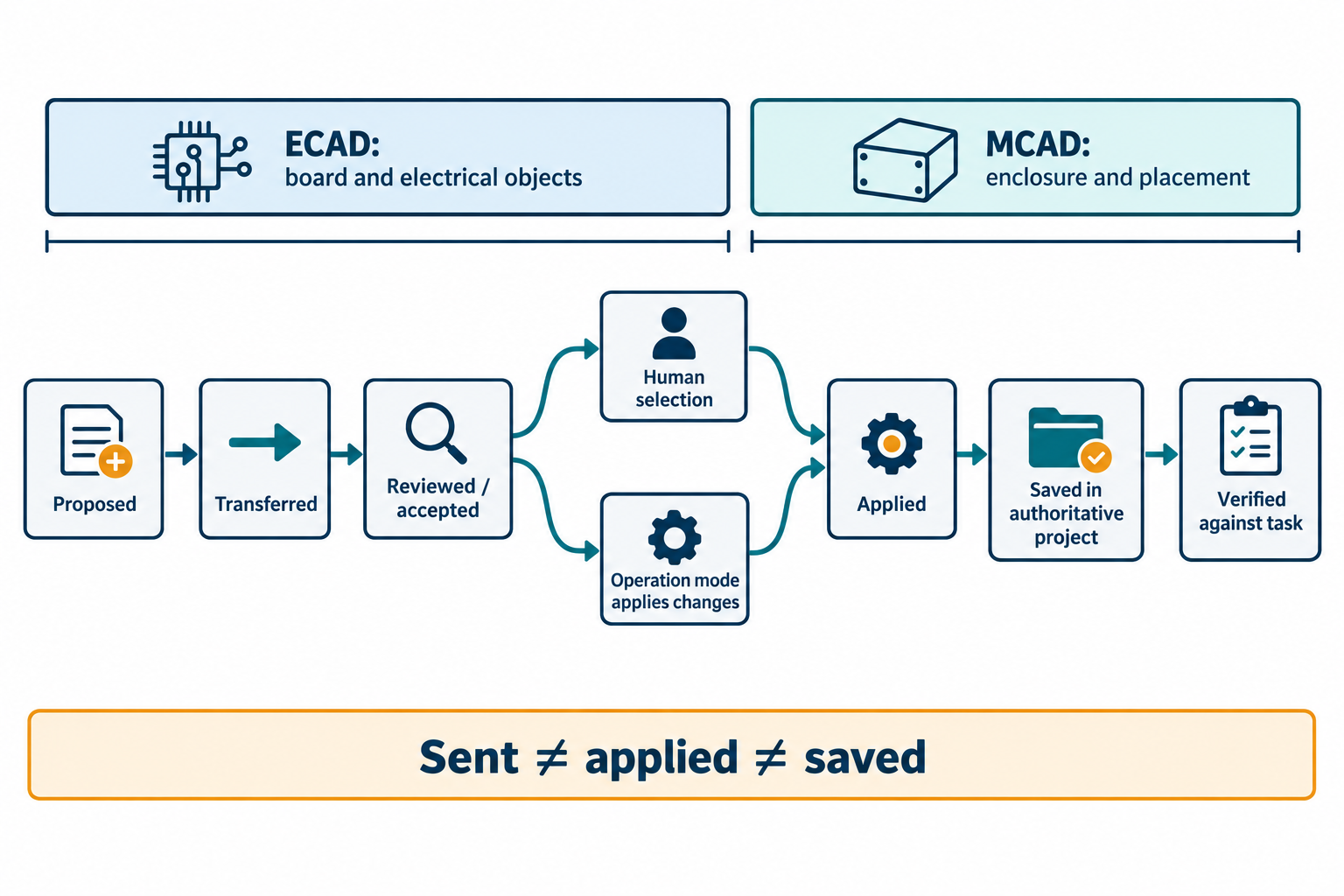
Track the stages explicitly
| Stage | Question |
|---|---|
| Proposed | Which source object changed, and who owns its design intent? |
| Transferred | Which package or incremental update reached the other system? |
| Reviewed or accepted | Does this operation actually have a review step, or does it apply changes automatically? |
| Applied | Which changes were applied, rejected, or left unresolved? |
| Saved | Which authoritative source documents were saved or committed after the operation? |
| Verified | Which required geometry, identity, electrical, or fit checks were completed? |
Do not combine these into one “synchronized” status unless the product documents precisely what that status means.
Assign authority by object
Before collaboration, agree who owns board shape, mounting features, component placement, native electrical identity, constraints, enclosure placement, and manufacturing outputs. A physical model can be linked to a native component in a particular workflow, or it can remain a geometric body. Object mapping does not by itself define who may edit the object or which system is authoritative.
Use an authority table agreed by both teams. These rows are prompts; ownership and permitted operations depend on the project and selected route.
| Object or information | Source owner | Permitted proposal | Receiving operation | Result to check |
|---|---|---|---|---|
| Board outline and mounting features | ECAD board owner, if designated | Mechanical change proposal | Compare or apply the documented geometry change | Outline, holes, and datum in the resulting board |
| Component placement | ECAD or MCAD owner, as agreed | Placement change in the allowed direction | Review, select, or automatically accept according to the mode | Intended component and occurrence positions |
| Electrical component identity and connectivity | ECAD owner | Electrical design change in the source system | Update the linked board or exchange representation | Component, pad, pin, and net associations |
| Enclosure geometry and assembly placement | MCAD owner | Mechanical integration change | Apply or reconcile in the receiving MCAD model | Fit and placement against the named board state |
| Fabrication and assembly outputs | Release owner | Output-setting or variant change | Regenerate from the intended released source state | Output set, population, warnings, and recipient checks |
Document a baseline or source revision for every comparison. If the teams edit concurrently, name how they reconcile stale or incompatible changes. Neither a change list nor a matching shape proves that the source schematic, PCB, and mechanical model share the same state.
Operation mode can change what “accepted” means
Altium CoDesigner describes a pull as a comparison with the last pushed design. The recipient may select available changes to apply; some detected differences can be unavailable and remain unresolved. A CoDesigner push also stores separate exchange data; it does not itself modify or save the source schematic and PCB documents or commit the project.
PTC’s Creo Parametric 12 documentation describes a different distinction: in simplified ECAD-MCAD collaboration, getting an incremental IDX file automatically accepts all changes. Its separate collaboration mode supports comparing and investigating changes. That is a version-specific product example, not a rule for every IDX workflow. Do not promise a human approval gate where the selected mode applies changes automatically.
Close the loop with the authoritative owner
After each transfer, retain the relevant package or change summary, the selected operation and mode, unresolved differences, and the resulting saved design state. Confirm that each required change appears in the intended source or destination document. For electrical changes, check component and net associations; for mechanical changes, compare the relevant geometry and fit criteria. For a board inside a device assembly, also confirm whether board content required its own update.
A transfer notification, accepted change list, or completed source save is not proof of a complete round trip or conflict-free synchronization. Use the multi-board guide for separate board and device states, and the electrical identity guide for component and connectivity checks.