NWD, NWF, and NWC describe different Navisworks states. NWD is a published snapshot, NWF is a project that links to its source files, and NWC is a cache used while native design or scan data is opened or appended. Choosing one by extension alone can leave the recipient with a snapshot when they need live source links, or a link project without its dependencies.
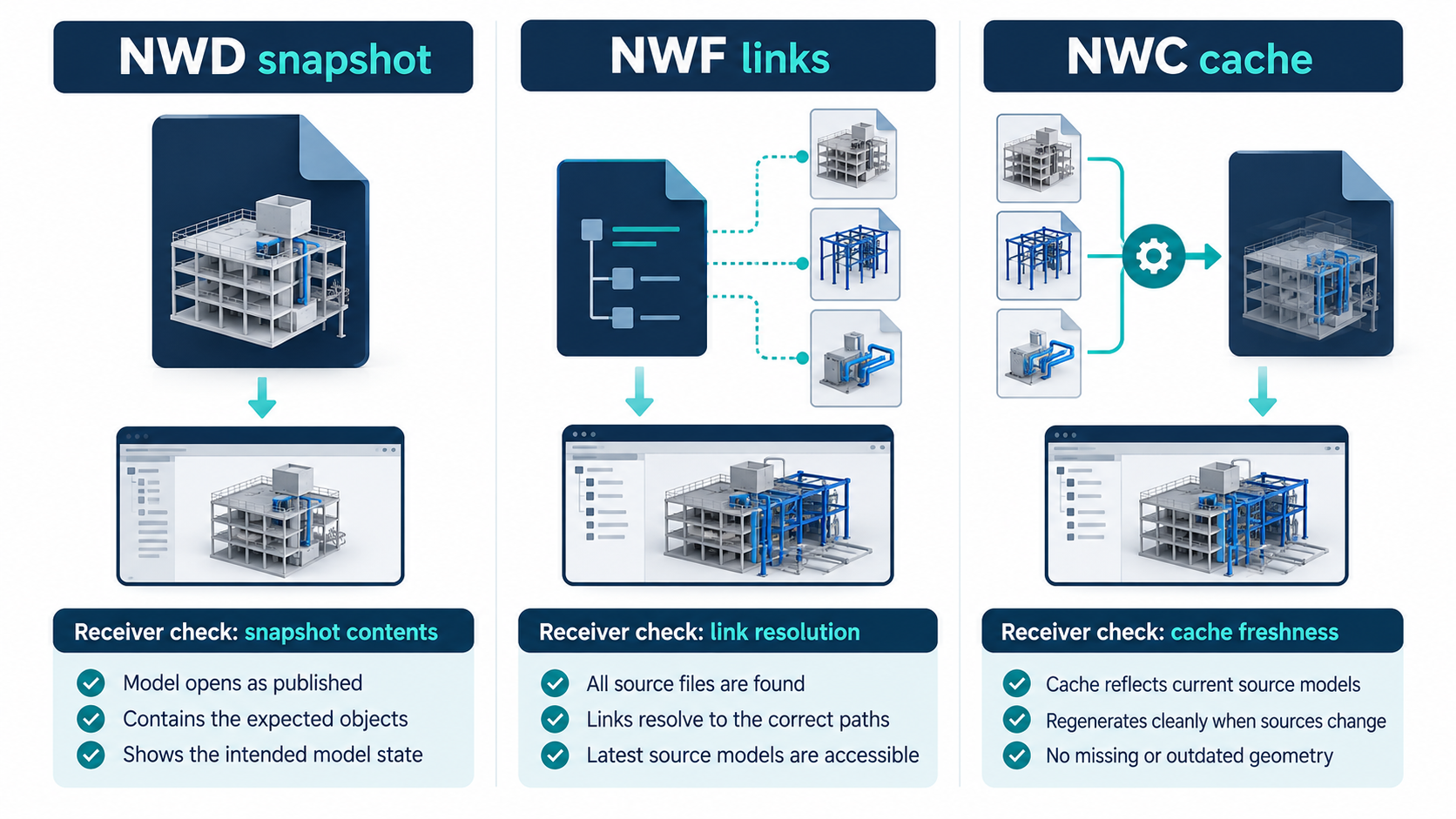
Select the file for the collaboration task
| File | Documented contents | Collaboration consequence |
|---|---|---|
| NWD | Model geometry and Navisworks-specific data, including review markups; it represents a snapshot of the current model state. | Useful when the recipient needs to inspect a published coordination state. Check what was hidden, embedded, excluded, and retained as properties. |
| NWF | Links to original native files and Navisworks data, but stores no model geometry. | Useful for continuing a linked project when the recipient can access the referenced files and paths. The NWF alone is not a self-contained model delivery. |
| NWC | A cache created when native CAD or scan files are opened or appended. Navisworks reuses it when it is newer than the original and regenerates it when the source is newer. | A performance intermediate, not a substitute for deciding what project files or model state to hand off. |
These files do not promise the same update behavior or payload. A support list of CAD file readers can help establish whether a destination release can open a format, but it does not establish equal fidelity, property retention, or acceptance of a coordination task.
Set NWD export options deliberately
The NWD exporter exposes choices that change the published snapshot. Hidden items can be excluded or retained as hidden objects in the selection tree. ReCap and texture data, including externally referenced files, can be embedded. Native-CAD object properties can be omitted, and the NWD file version can be selected.
Record these choices with the handoff. Embedding named resource types does not prove that every dependency is included, and excluding native properties can remove information the recipient expected. Check hidden-object policy, model selection, properties, embedded resources, and the file version before publishing.
Make an NWF usable on another workstation
An NWF’s source links are part of the route. Gather the original models and other dependencies using the project’s actual path and access rules. Open the NWF on the receiving workstation and check for missing files, unresolved references, or a source version that differs from the intended coordination state. Do not assume that copying the NWF also copies the linked models.
If the recipient needs a fixed review state rather than continued links, consider publishing an NWD alongside the working NWF. Treat these as separate deliverables with separate acceptance checks: one is a snapshot, the other depends on the source files.
Record the source-to-NWC conversion
When Revit is the NWC sender, record more than “export NWC.” The Revit exporter can choose construction parts or original objects; whether to export element IDs; whether to convert no parameters, element parameters, or also parameters from referenced elements; and whether to include linked CAD formats. It separately offers shared or internal coordinates and an export scope of the entire project, current view, or current selection. These options define the coordination input. They do not show which properties or links the recipient will need.
For Autodesk Model Coordination, aggregation and automatic clash detection are separate capabilities. Autodesk says automatic clash detection requires stable, unique element IDs across versions. Its current support table distinguishes formats that can be aggregated from those verified for clash detection. For Revit-exported NWC, turn on Convert Element Ids when the target workflow requires the file to be recognized as Revit content for automatic clash detection. Data Exchanges created or updated after August 13, 2026 with the latest connectors have the listed Model Coordination workflows; older exchanges remain visible but lack automatic clash detection, the object table, and Save to Files.
Automatic Model Coordination clash detection uses a fixed 0.5 mm tolerance; a review filter does not change that calculation. Matching Navisworks to 0.5 mm can reduce count differences, but does not prove that all clashes were detected or that a clash decision is correct. Revit 2027 can show selected property-value differences between two cloud coordination-model versions; that view is a scoped change review, not an exhaustive model diff.
Receiver acceptance checks
- Freeze the source files, model versions, Navisworks release, and intended review task.
- For NWF, test that the recipient can resolve every required source path and open the intended source revisions.
- For NWD, inspect the selection tree, hidden objects, native properties, markups, embedded ReCap or texture data, and file version.
- Compare the visible model and required object data with the agreed coordination scope.
- Have the intended receiver perform the review or coordination operation and record missing or transformed information.
Key points
- NWD is a snapshot, NWF is a link project, and NWC is a cache.
- NWF needs its source files; NWD export options alter the snapshot payload.
- Revit NWC exporter settings, Model Coordination eligibility, IDs, and clash tolerance change the coordination interpretation.
- File-reader eligibility and successful opening do not prove coordination acceptance.