Revizto publishing creates or updates a coordination scene for review. It is not a general transfer of an editable Revit, Inventor, or Civil 3D project. The source view, object selection, publishing rights, and destination scene determine what collaborators see; project storage and license region determine how that state is shared and moved. The steps below describe vendor-documented controls, not a tested route or accepted model.
Choose and preflight the publishing route
The Revizto 5 plug-ins for Revit, Inventor, and Civil 3D publish 3D models and can publish associated sheets. Confirm that the installed host release appears in Revizto’s current supported-version list, that both applications are installed, and that the user has the needed rights in the destination project.
| Source application | Selection to verify | Published state and limits to check |
|---|---|---|
| Revit | A specified 3D view or the current object selection | Depending on settings, the output can include linked models, viewpoints, textures, grids, rooms, areas, geometry, properties, point clouds, and sheets. Line weights/patterns and texture patterns are not preserved; decal textures may be rotated. |
| Inventor | The selected model view; hidden objects are not published | The published scene can include geometry, viewpoints, textures, object properties, and sheets. Objects without polygonal presentations are not published, and scheduled publishing is not supported by the documented plug-in. |
| Civil 3D | If publishing a selection, apply it after opening the publishing wizard; an earlier selection is cleared | The documented payload can include xrefs, the current viewpoint, textures, lines, geometry, properties, point clouds, and sheets. Some lines, line styles, texture patterns/coordinates, and text labels are not published. |
Publishing rights distinguish adding new models or sheets and updating content you published from managing items first published by someone else. First-time model-coordinate assignment requires the separate Assign custom object properties right. Revit sheet mapping can use model GUID, file name, sheet number, and title; GUIDs may collide across separate Revit models. Review the mapping before publishing.
Treat republishing as a scene change
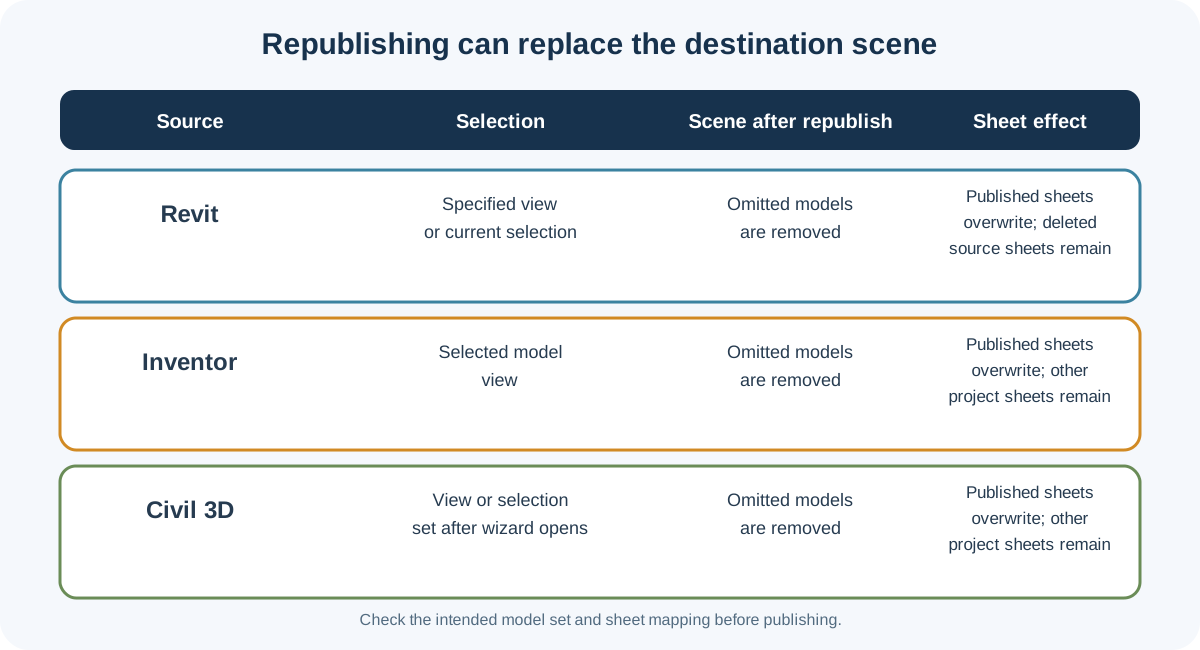
For all three sources, republishing can completely overwrite the destination scene. Models absent from the newly published view or selection can be deleted from Revizto. Set the intended view and model set before you publish, and compare the resulting scene with the previous one before collaborators rely on it.
Sheet behavior differs by source. Published Revit sheets replace their prior versions, but a sheet deleted in Revit is not automatically deleted from Revizto. For Inventor and Civil 3D, sheets included in the new publish overwrite those versions; other previously published sheets from the project remain. These are documented behaviors, not a guarantee that every sheet or identifier maps as intended.
Check scene alignment separately from source coordinates
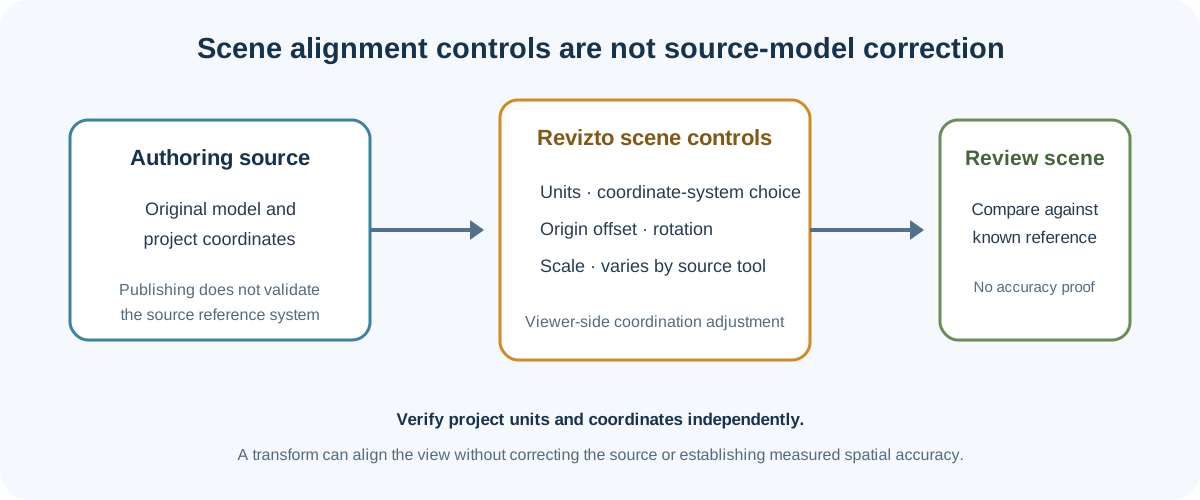
Revizto’s scene and model controls can assign units, a coordinate-system choice, an origin offset, rotation, or scale. The available settings depend on the authoring application, and Revizto recommends using the same coordinate-system choice for all models in a project to reduce manual adjustment.
These are Revizto-side coordination controls. They do not establish that a source model was corrected, that a geospatial transformation is accurate, or that two models align for a project task. Compare the published model with a known reference and verify the units and project coordinates separately.
Choose a storage mode for the collaboration task
| Project storage | Documented state | Practical check |
|---|---|---|
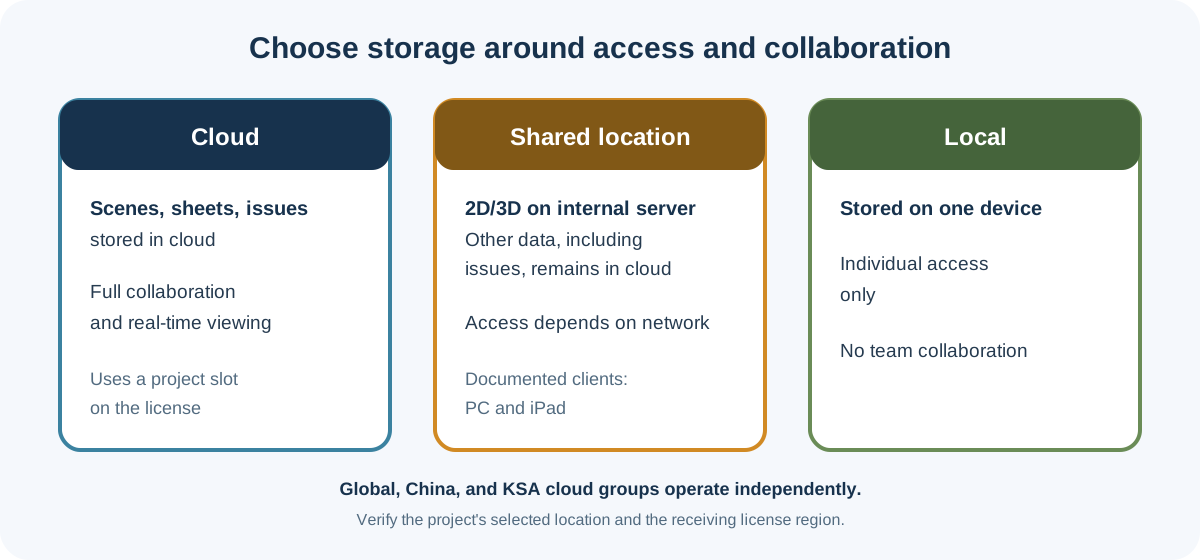
| Cloud | Scenes, sheets, and issue data are stored in the cloud; full collaboration is supported. A cloud project occupies a license project slot. | Confirm the selected cloud region and that the destination license has room and the needed features. |
| Shared location | 2D and 3D data are on an internal server; other data, including issues, remains in cloud storage. Access depends on the company network; the documented shared-location clients are PC and iPad. | Confirm network access to the server as well as cloud access for the project’s other data. |
| Local | Project data is stored on one device. Team collaboration is not supported. | Treat it as an individual local state, not as a shared project. |
Revizto documents independent global, China, and KSA cloud groups. Data is not replicated among the global locations, and the groups do not interact. Confirm the source and destination license regions before planning a move.
The toolbar’s Sync action uploads updates to scenes, sheets, viewpoints, and video tracks, then retrieves the latest model if it changed in the cloud. That description does not specify conflict resolution or prove that all project data synchronized. The Docs control connects a project to an external CDE; a visible connection does not establish that a particular tenant is configured or that it transfers model data.
Plan a license migration around its state losses
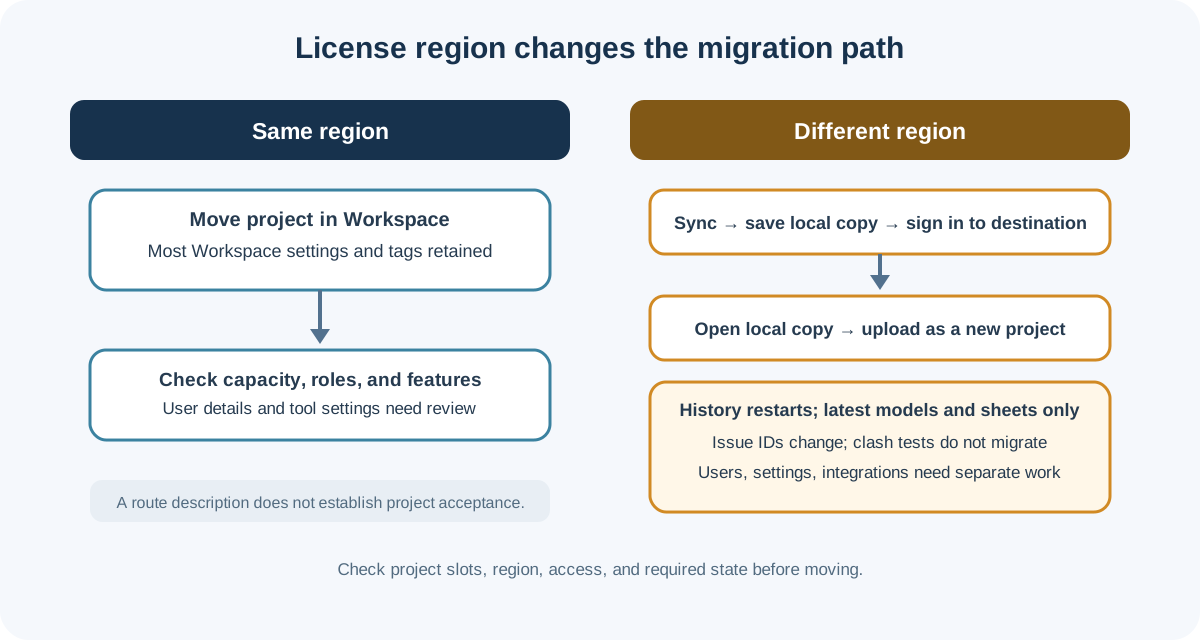
For licenses in the same region, Revizto describes moving the project through Workspace. Most Workspace settings and project tags are retained, subject to destination-license features and capacity. User details and individual tool settings do not transfer automatically. Check project roles, user eligibility, and any license-dependent features after the move.
Revizto license regions are not directly connected. The documented cross-region path is to sync the project, save a local copy, sign in to the destination region, open that copy, and upload it. The upload creates a new project. Version history, Workspace activity, and project log restart; clash tests do not migrate; issue IDs change; users, tool settings, and cloud integrations need separate handling. Only the latest 2D sheet and 3D model versions are saved by this procedure, and shared settings become local until they are shared again.
Do not treat the local copy as an equivalent project archive. Before moving, list required issue links, clash results, history, users, settings, integrations, sheets, and model versions. Decide which losses are acceptable and who will verify each destination state.
Clear cache only after checking local changes
Close the project before clearing its cache. If local changes should be uploaded, sync first. Clearing cached models, sheets, issues, clash tests, and documents loses unsynced local changes; other cloud-held data can be downloaded again when the project is next opened. The same page lists publishing settings, offline CDE availability settings, and issue or markup drafts as separate selections with permanent deletion consequences. Cache recovery guidance for cloud data should not be assumed to cover local or shared-location project state.
Verify the receiving scene
Ask a recipient with the intended project role to open the destination project and check the specific task:
- confirm the scene and model set, selected source view, and expected sheets;
- compare object geometry, properties, textures, viewpoints, and sheet identifiers that matter to the review;
- verify model units, coordinate settings, and alignment against a project reference;
- check the project’s last-published and last-synced state, permissions, and any required issue/model relationships; and
- after a migration, confirm the required versions, history, users, roles, settings, and integrations separately.
A scene that opens or syncs is not evidence of native editability, complete dependency closure, preserved history, spatial accuracy, or acceptance for design or construction. Record the required recipient operation and the evidence used to accept it.
Key points
- Set the source view and selection before republishing; models omitted from the published set can disappear from the destination scene.
- Revit, Inventor, and Civil 3D have different sheet behavior and publishing limits.
- Scene transforms adjust the coordination view; they do not prove corrected source coordinates or measured alignment.
- Cloud, shared-location, and local projects have different access and collaboration boundaries.
- Cross-region migration creates a new project and does not carry several history, issue, clash, user, and integration states.