Datasmith can connect a design application to Twinmotion through Direct Link or a scene file with its assets. Either route is a visual-delivery workflow whose sender eligibility, dependencies, import choices, and updates need to be recorded. Continuing a Twinmotion scene into Unreal adds another exporter/receiver boundary; a rendered match does not establish engineering equivalence.
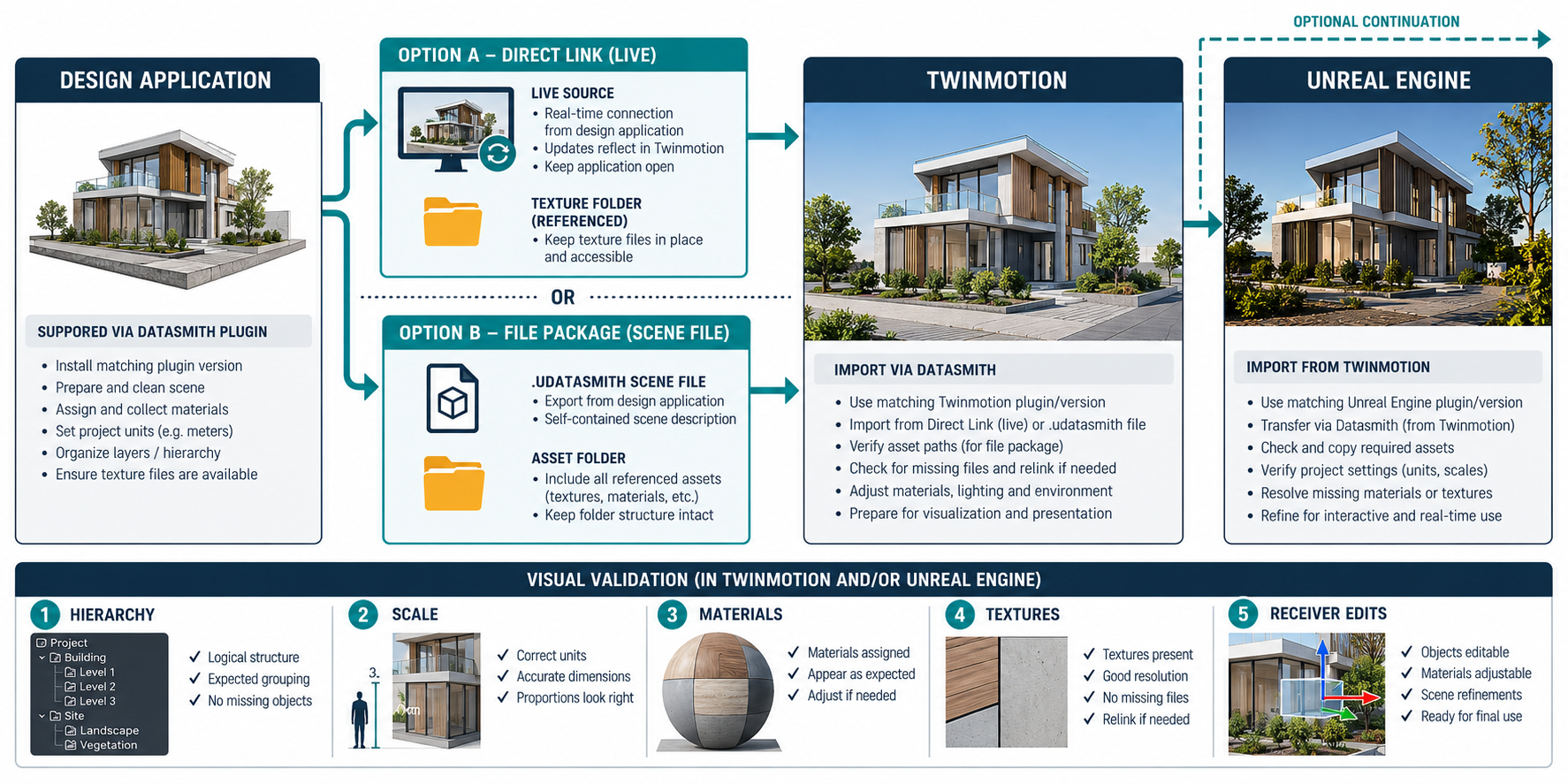
Choose one eligible sender and destination
Start with one named source application, release, model/view state, Datasmith exporter version, Twinmotion release, and visual task. Epic’s support table distinguishes built-in exporters from separately downloaded plugins and Direct Link/Auto Sync from file import. For example, its current table lists Revit 2024 and later with a built-in exporter, while Revit 2018–2023 uses a downloaded exporter. Confirm the exact installed combination rather than extrapolating from another application row.
VRED/USD is a separate scene route. Choose Datasmith when its documented source and receiver workflow matches the visual task; do not treat the two exporters or their packages as interchangeable.
Direct Link keeps a live source dependency
Direct Link can use Auto Sync where the exporter supports it, or a manual synchronization action. Twinmotion can link multiple applications, but it uses one link per application; another link to the same application requires another open instance. Keep the source application open, the source filename/location stable, and the synchronization active when refreshing.
DirectLinkTextures writes textures to a dedicated folder and refers to them there. Keep that folder with the Twinmotion project. If the texture folder is disabled, a temporary operating-system folder may be cleaned up and later texture resolution can fail. If a link breaks, check the source path, source application state, and synchronization before evaluating the scene.
File delivery includes a scene file and assets
The documented file route exports a .udatasmith file and a folder of scene/material assets. For most supported design applications, only viewport-visible assets are exported. Retain the asset folder and record the source view and export scope alongside the scene file.
Refreshing an existing package depends on the same filename and path. If either changes, reimport the new .udatasmith and choose the import options again. Reimport/reset controls for transforms, materials, lights, and deleted objects are distinct operations; they are not a general conflict merge or proof that recipient edits survive an update.
Record the Twinmotion import choices
- Hierarchy: Keep hierarchy for separate objects, pivots, and inspectable metadata; collapse all combines a scene into one element and removes separate per-object selection/manipulation.
- Materials and geometry: Material substitution uses a mapping table and changes source materials into Twinmotion materials. Full-precision normals and UVs affect shading/texture interpretation; they do not repair defective source geometry.
- Axes and scale: Record the chosen up axis and unit conversion. Automatic units work for most files, but the receiving project must confirm scale and orientation.
- Lights: Record whether original light parameters, defaults, or only the light geometry/source are processed. Some choices apply only at first import or Direct Link creation.
- Revit family substitutions: Revit 2025.2 or later is listed for this workflow. Enable substitution and download a cloud-library object before use; reimport or synchronize before a new substitution takes effect. A visual replacement is not a BIM-equivalent family.
Test the required object hierarchy, appearance, materials/textures, placement, visibility, and controlled source update in the actual Twinmotion scene. Record substitutions and receiver-side edits separately from source-model state.
Qualify continuation into Unreal
Epic’s documented workflow requires Unreal Engine 5.4 or later and the Datasmith Importer plugin. Twinmotion export creates a .udatasmith file and an asset folder that can include textures and .udsmesh files.
Standard mode creates more separate Static Mesh and Material assets for duplicated content. Optimized mode reuses assets and reduces their number, which can affect edit scope when a shared asset is changed. Select the mode based on the intended Unreal edits and inspect linked/reused assets before editing. A Twinmotion landscape requires recreating an Unreal landscape from the imported heightmap and materials in the documented workflow; do not assume the imported landscape already behaves as a native Unreal landscape.
Record the receiver result
- Freeze the sender model/view, application and exporter releases, Twinmotion release, output path, and selected import settings.
- Preserve the complete
.udatasmithpackage or Direct Link texture folder and record where dependencies reside. - Compare selected objects, hierarchy, scale/axes, materials, textures, lights, and visibility against the visual brief.
- Change a source object or asset path, refresh/reimport, and inspect what changed and whether recipient edits remain.
- If continuing to Unreal, record engine/plugin releases, export mode, reused assets, and any landscape recreation.
- State what the test establishes. Neither support eligibility nor a successful render demonstrates exact CAD geometry, BIM meaning, or engineering acceptance.
Key points
- Direct Link and
.udatasmithfile delivery have different source and asset dependencies. - Pin exporter/receiver versions, visible source scope, hierarchy, substitutions, axes, units, and update method.
- Unreal continuation requires its own version, plugin, asset-reuse, and content checks.
- Visual review is a task-specific result, not a general preservation guarantee.